
LemonScore Controller: the ready-to-use touchscreen device
The LemonScore Controller is a ready-to-use computer with a touchscreen: touch operation, on-screen keyboard, importing from a USB stick and restarting.
The LemonScore Controller is a fully set-up computer with LemonScore already installed. You operate it on its touchscreen. Running the scoreboard works the same as in the desktop app, but a few things are different because the device needs no mouse, no keyboard and no browser.
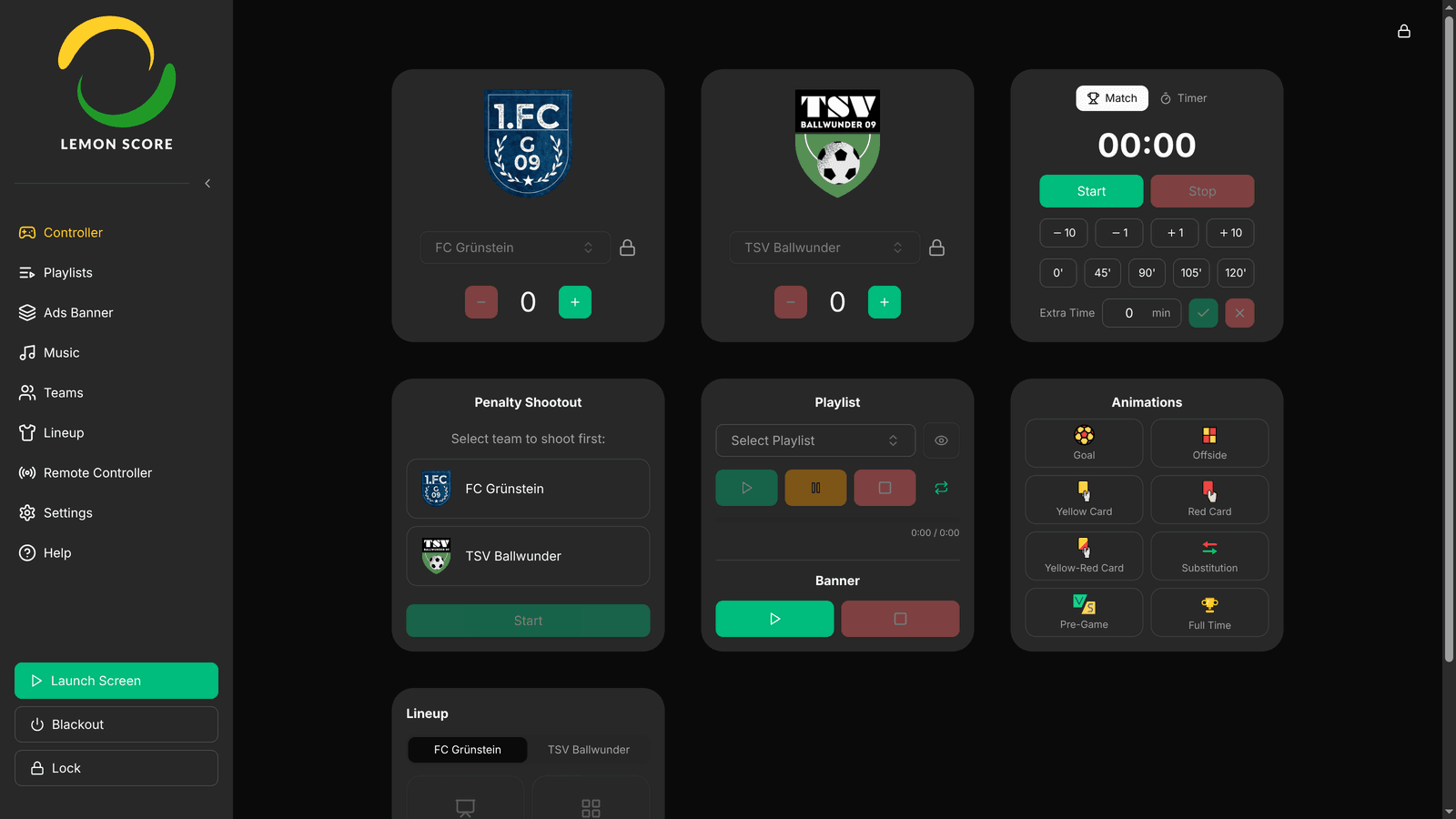
What is different from the desktop app
- LemonScore starts automatically when you switch the device on and fills the whole screen. There is no window to move or close.
- When you tap a text field, an on-screen keyboard appears.
- Instead of the operating system's file dialog, LemonScore opens its own file browser, which shows USB sticks.
- Settings has an extra System tab for the network, screens, sound, the clock and more. See System settings.
- Help in the sidebar shows a QR code for the documentation, because the device has no browser.
- You restart and shut down the device from within LemonScore.
- You can lock the screen with a PIN. See Screen lock.
You activate your licence the same way as in the desktop app, see Licensing.
Operate by touch
Tap wherever this documentation says "click". Drag sliders with your finger. When a page is longer than the screen, swipe up or down.
Use the on-screen keyboard
- Tap a text field, for example Search teams... on the Teams page. The On-screen keyboard appears at the bottom of the screen.
- Type your text. The up arrow key makes the next letter a capital.
- Digits are in the top row. For more symbols, tap ?123. Tap ABC to return to the letters.
- Tap the X at the top right or the key with the down arrow to close the keyboard.

The key layout follows the setting under Settings › System › Keyboard. With the German (Switzerland) layout, the on-screen keyboard shows the Swiss German layout as well: there is no key for the German sharp s, and Shift on ü, ö and ä gives è, é and à, as on a Swiss keyboard. After Shift, the capitals Ü, Ö and Ä are at the right edge.
Number fields open a number pad that matches the field. The PIN and the jersey number get digits only; other number fields also get a decimal point or a minus key, depending on the field.
When the keyboard opens inside a dialog, the dialog moves up above the keyboard, so its buttons stay visible.
Import files from a USB stick
Bring logos, advertising banners, images and videos to the Controller on a USB stick. The example shows advertising banners; team logos, playlists and music work the same way.
- Plug in the USB stick. It is detected automatically.
- Tap Ads Banner in the sidebar, then Add Banner Image. The file browser opens and shows the USB stick.
- Tap a folder to open it. The left arrow takes you up one folder.
- Tap the files you want to import. On the right you see a preview of the file you selected last.
- Tap Open.

The buttons at the top of the file browser switch between the USB stick, Home and Downloads. Only files that fit the current task are shown. When saving, for example with Export Backup, choose a folder, enter a name under File name and tap Save.
Restart or shut down
- Tap Settings in the sidebar.
- Tap the red power button at the top right. The Restart or shut down dialog opens.
- Tap Restart to restart the whole device, or Shut down to switch it off.

There is no second confirmation: the Controller restarts or switches off immediately, even during a match. After shutting down, switch the device back on with its power switch.
Open Help
Tap Help in the sidebar. The Documentation dialog shows a QR code. Scan it with your phone to open this documentation.

Good to know
- The Lock button only appears in the sidebar once you have switched on the screen lock.
- Give the files on your USB stick clear names, for example the sponsor's name. The file browser only shows the file name and a small preview.
- If a keyboard is connected, you can switch off the on-screen keyboard under Settings › System › Keyboard.
- You can also run the scoreboard from your phone, see Remote control.