
Penalty shoot-out: start and record penalties
Start a penalty shoot-out on the controller, record every kick as goal or miss and show it live on the scoreboard, with undo, sudden death and your own layouts.
When a match goes to penalties, you record every kick on the Penalty Shootout card of the controller. The scoreboard shows the kicks of both teams live while the shoot-out is running. You choose what the display looks like under Penalty shootout layouts.
The feature video shows it in about a minute.
Start the shoot-out
- Check that the right teams are selected on the team cards.
- On the Penalty Shootout card, click the team that shoots first.
- Click Start.

The penalty display appears on the screen with the logos and the kicks of both teams until you end the shoot-out. The standard display and layouts with their own background replace the scoreboard. A layout with Show over the scoreboard sits on top of the running scoreboard, so score and match clock stay visible.
Record the kicks
- The top of the card shows who is shooting, for example "FC Grünstein - Kick #2".
- After the kick, click Goal or Miss.
- LemonScore switches to the other team automatically.
For each team the card shows five dots: green with a tick for a goal, red with a cross for a miss, yellow for the next kick.


Recorded the wrong result? Click the arrow to the right of Miss (Undo). This undoes the last kick. Click it several times to take back several kicks.
Sudden death and finish
LemonScore applies the rules for you:
- Each team first takes 5 kicks, alternating.
- As soon as one team can no longer catch up, the shoot-out is decided.
- If it is level after 5 kicks each, sudden death follows. The card then shows Sudden Death.
- In sudden death each team takes one kick per round. If only one team scores, the shoot-out is decided.

Once the shoot-out is decided, the card shows Finished. The result stays on the scoreboard.
End the shoot-out
- Click End.
- Confirm the End Penalty Shootout prompt with Confirm.
The penalty display disappears from the scoreboard and all kicks are reset.
Penalty shootout layouts
Under Settings › Screen, in the Penalty shootout layouts section, you choose what the shoot-out looks like on the screen. The Standard card is the built-in display. It adapts to any resolution (Responsive) and can't be edited. For an editable copy, use the Classic template.

Create a layout from a template
- In the Penalty shootout layouts section, click Templates.
- In the Penalty layout templates dialog, pick a template and click Use template.
- LemonScore creates a copy and opens it in the layout editor. Adjust the layout and click Save.
- Go back with the arrow at the top left and click Activate on the layout's card.
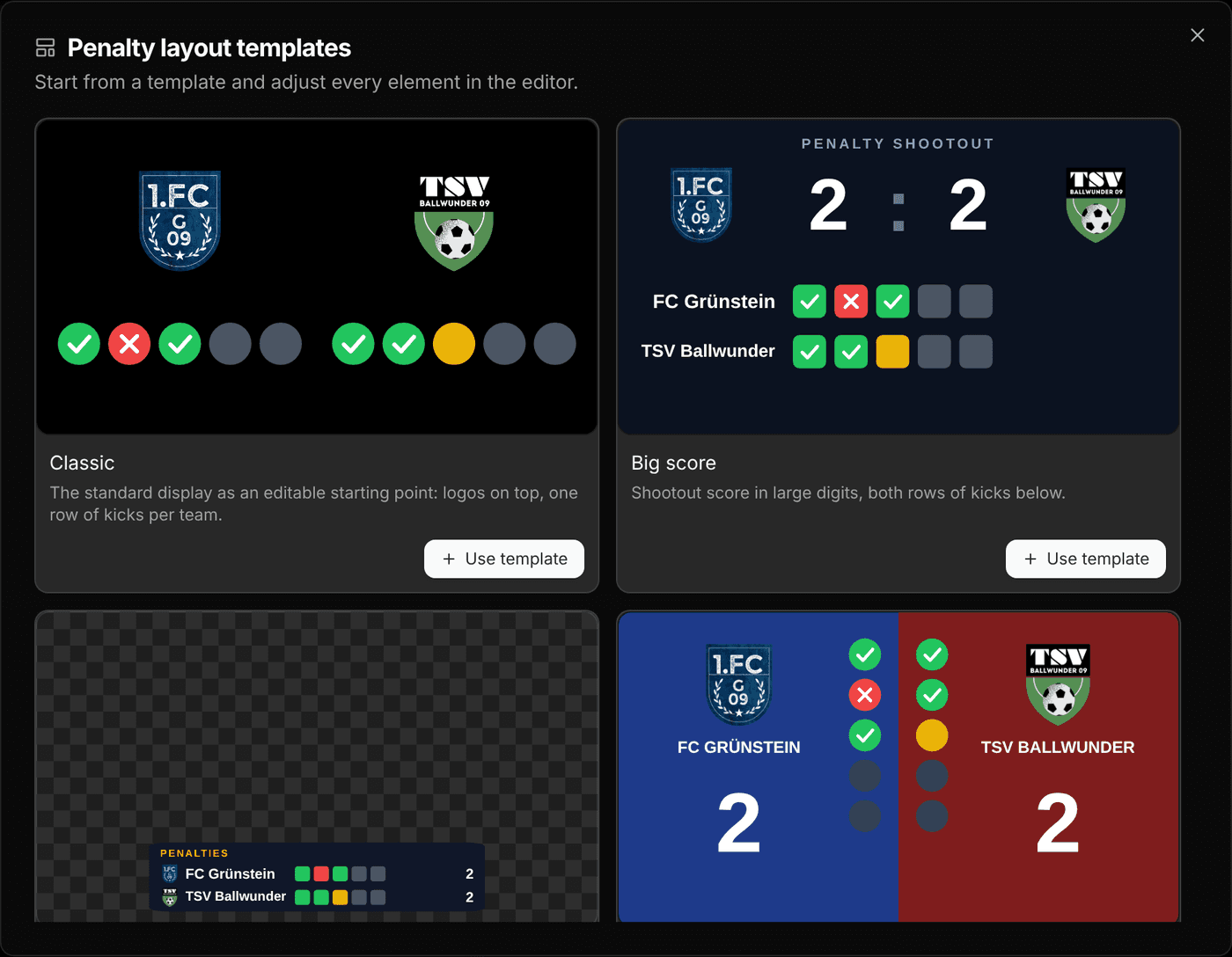
There are 10 templates: Classic, Big score, Broadcast bar, Split, Stadium, Neon, Clean light, Showdown, Top bar and Side panel. Broadcast bar, Top bar and Side panel carry the Over scoreboard badge: they have a transparent background and sit on top of the running scoreboard.
New penalty layout starts with an empty canvas. The ⋮ menu of a card lets you Edit, Duplicate or Delete a layout.
Adjust a layout in the editor
You edit penalty shootout layouts in the Layout Editor. Two things differ from scoreboard layouts:
- The Penalty elements button adds Team 1 Kicks, Team 2 Kicks, Team 1 Penalty Score, Team 2 Penalty Score and the Sudden Death Badge.
- The Show over the scoreboard switch in the toolbar makes the background transparent.

For a row of kicks you set on the right:
- Marker colours: one colour each for Goal, Miss, Next kick and Pending.
- Marker shape: Circle, Rounded or Square.
- Goal / miss icons and Icon colour: tick and cross inside the markers.
- Direction: Horizontal or Vertical.
- Alignment in frame, Spacing and Kick order, for example From left or From right.
The active layout on the screen
Exactly one layout is always active: its card has a green border and the Active badge. This layout appears as soon as you start a shoot-out on the controller.

If you delete the active layout, the screen goes back to the standard display.
Good to know
- The shoot-out does not change the score on the team cards. Adjust the result yourself if needed.
- Record kicks on one device only. If two people click Goal at the same time, LemonScore counts the kick once.
- While a playlist is playing or the blackout is on, the penalty display is hidden.
- OBS and vMix have their own penalty shootout layouts in the broadcast overlay.
- You can also run the shoot-out from the mobile app, the remote control and shortcuts.