
Animation editor: design your own animations
Design your own animations in the animation editor: starter templates, timeline, keyframes, a soundtrack and custom animations for controller and API.
In the animation editor you design the animations of your own animation set: text, images, videos and shapes, how they appear and leave, and a sound to go with them. The Default set can't be edited. Duplicate it first or create a new set, see Animations.
The feature video shows it in about a minute.
Open the editor
- Open Settings › Animations.
- Open the ⋮ menu of one of your sets and click Edit.
- Click Edit on the animation you want to design.
If the animation is still empty, LemonScore asks Start from:
- Blank canvas: you start without elements.
- Use a template: you pick one of 4 starter templates: Bold title, Lower third, Player spotlight or Logo flash. The preview shows each template with sample data.

The workspace
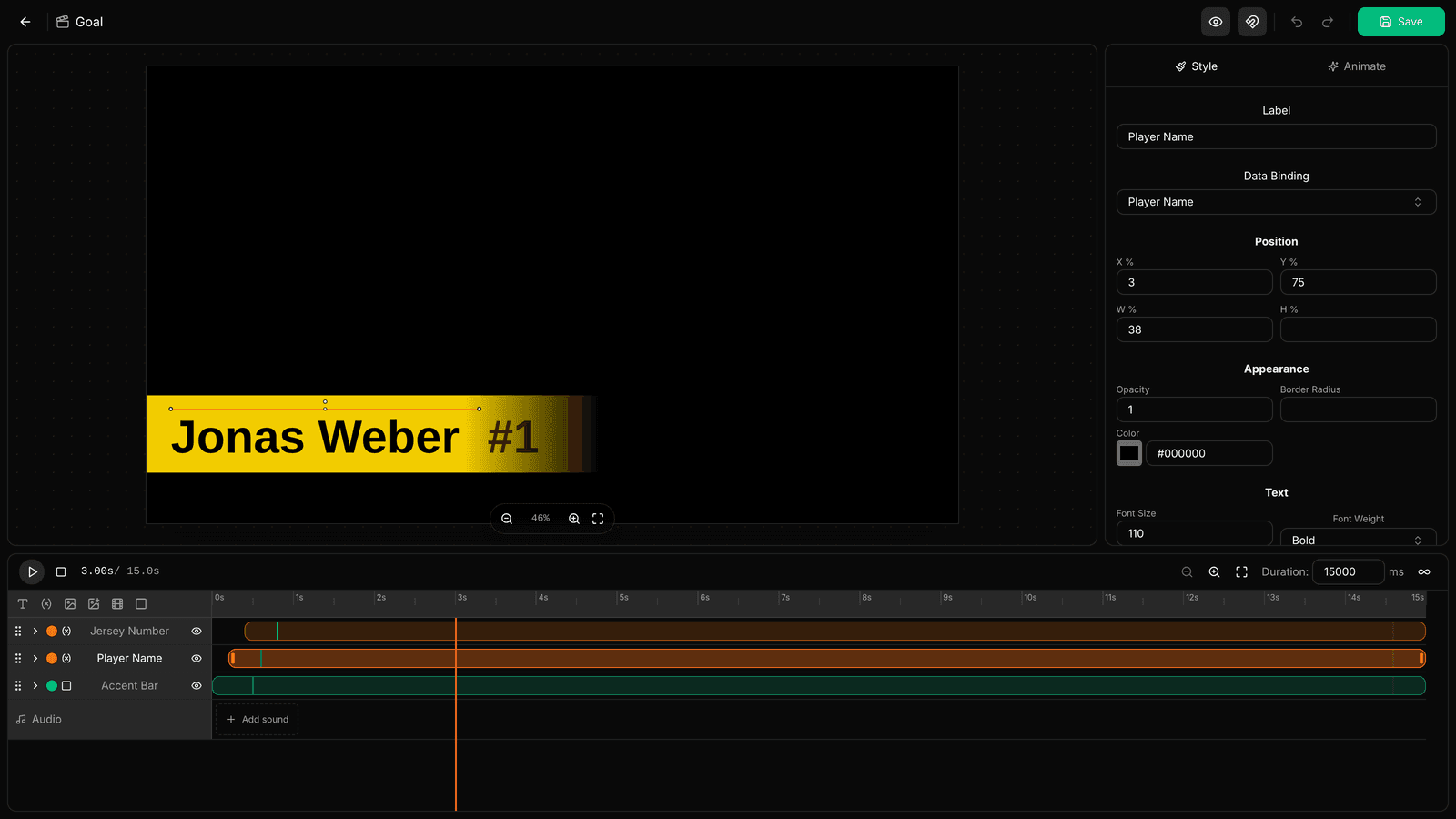
- Top: back, the animation's name, Preview Data, Snapping, Undo, Redo and Save.
- Centre: the preview of the animation at the current time. Move elements directly with the mouse.
- Right: Properties of the selected element with the Style and Animate tabs.
- Bottom: the timeline with play, Duration and one row per element. The Audio row is underneath.
With Preview Data (eye icon) you pick a team and a player from your teams. The preview then shows their name, number and images.
Add elements
- At the top left of the timeline, click an icon: Text, Dynamic Text, Image, Dynamic Image, Video or Shape.
- For Shape, choose the shape, for example Rectangle, Circle / Ellipse or Star.
- Adjust position, size, colour and font in the Style tab.
Dynamic elements show match data. Under Data Binding you choose what is shown, for example the player name, shirt number, portrait or team logo. Static elements always show the same text or image.
For Dynamic Image, besides Player Portrait you can also pick the player images stored in the team:
- Player Image (matching the animation) (
{{playerImageAuto}}): the goal pose for goals, the card pose for yellow, red and yellow-red cards, otherwise the portrait. - Player Goal Pose (
{{playerImageGoal}}), Player Card Pose ({{playerImageCard}}), Player Celebration ({{playerImageCelebration}}), Player Lineup Image ({{playerImageLineup}}): if the image is missing, the portrait is shown. - Player Sponsor (
{{playerSponsor}}), Player Extra Image 1 and Player Extra Image 2 ({{playerImageCustom1}},{{playerImageCustom2}}): stay empty if the player has no such image.
The Default set and the starter templates use the Player Portrait. To show a goal pose, bind the image to one of the new variables.
Drag an element's bar in the timeline to set when it appears and leaves. With several elements selected, Stagger entrances spreads their starts one after the other.
Set the movement
- Select an element and open the Animate tab.
- Under Animation mode, choose Simple or Advanced.
Simple: you choose a preset for each of three phases:
- In (how it appears), for example Slide in or Zoom in
- While on screen, for example Pulse or Flash
- Out (how it leaves)
Speed, Move and Feel fine-tune the movement.

Advanced: every property gets its own keyframes. In the Style tab, click the stopwatch next to a value, move the playhead to another time and change the value. LemonScore adds a key there.
Play time
- Duration at the bottom right of the timeline is the length of the animation in milliseconds. This is how long it stays on screen.
- Play indefinitely (∞ icon): the animation repeats until someone presses Stop.
- Pre-Game always runs until you stop it.
Add a soundtrack
- In the Audio row, click Add sound or drag an audio file onto it.
- The Choose audio section dialog opens. Drag the highlighted window to the part of the track that should play. The space bar plays it, From start moves the window back to the beginning.
- Click Use this section.

Click the soundtrack in the timeline to open its settings on the right: Volume, Start delay, Fade in and Fade out (up to 4000 ms each). To remove the sound, select it in the timeline and press Delete.

Save and close
- Click Save (or Ctrl+S). The editor stays open and the button shows Saved.
- Click the arrow at the top left to go back to the set.
If you haven't saved, LemonScore asks Discard changes?. Keep editing takes you back to the editor, Discard closes it without saving.
If LemonScore was closed unexpectedly while you were editing, Unsaved draft found appears the next time you open that animation. Choose Restore draft or Discard draft.
Copy a design to other animations
- In the set, click the copy icon (Copy Layout to...) on the animation whose design you want to reuse.
- Tick the animations that should get this design. will be overwritten marks animations that already have content.
- Optional: New custom animation adds a copy as a custom animation.
- Click Copy.

Create a custom animation
- In your own set, click New custom animation.
- Enter a name, for example "Timeout".
- Choose an icon, or upload your own with Upload PNG icon.
- Click Create. The editor opens with a blank canvas.
Custom animations carry a Custom badge in the overview. You delete them with the bin icon that appears when you hover over them. LemonScore asks with Delete animation before the animation is deleted for good.
Play custom animations
Custom animations of the active set play like the other animations:
- Controller: as their own tile on the Animations card. If the animation uses player data, the player selection opens. Otherwise the card shows both team logos and Play Animation.
- Shortcuts: the Play Animation action lists them under Custom animations. See Shortcuts.
- Remote control and mobile app: as a tile, like on the controller. See Remote control and Mobile app.
- API: with the type
customand the animation's id, see API integration.
Good to know
- A starter template on its own does not count as a change. Adjust at least one element and then click Save, otherwise the animation stays empty.
- Deleting a custom animation cannot be undone. Export it first if you want to keep it.
- Keyboard shortcuts: space plays and pauses, Ctrl+Z undoes, Ctrl+D duplicates, Ctrl+C and Ctrl+V copy and paste, Delete removes the selected element. On a Mac, use Cmd instead of Ctrl.
- The controller shows at most 8 animations. Hide the ones you don't need with the eye icon.
- You design the lineup slides with the same editor, see Lineup templates.