Operating the scoreboard: controls and actions
The LemonScore Controller is the central control unit for every scoreboard action: score, match clock, penalty shoot-out, playlists and animations.
The Controller is the central control unit for every action that is displayed on the scoreboard. From this interface you can manage and trigger every function in real time. It is designed for simple operation and quick access during matches or events.
The Controller is divided into six control boxes, each responsible for specific functions:
- Teams: update team name, logo and score
- Match clock: start, stop or reset the match clock and switch to timer mode
- Penalty shoot-out: track a penalty shoot-out
- Playlists and banners: start and stop playlists and banners
- Animations: trigger animations for important match events

Team controller
The team controller is designed for quick and easy score management during a match.
- You can increase or decrease the score for each team with the corresponding buttons.
- To change the team, click the edit button next to the team name. A dropdown menu opens.
- The dropdown shows all teams that were created in the Teams section. Simply select the desired team from the list.

Match clock and timer
The clock controller offers two modes: match clock and timer.
- The match clock is designed for regular matches, for example football matches that typically last 90 minutes.
- The timer is intended for small tournaments or mini games where a countdown is needed, for example 10-minute games.
You can switch between the two modes with the toggle at the top (1).
Match clock
- Start / Stop: starts or stops the match clock.
- Quick select (2): sets the clock to a specific time immediately.
- Added time (3): enter the desired added time. Press the green tick to show it on the screen.
Timer
- Input fields: enter the desired countdown duration.
- Start / Stop: starts or stops the timer.
- Reset: resets the timer to the value entered in the input fields.

Penalty controller
The penalty controller is used when a match ends in a penalty shoot-out.
First select the team that takes the first penalty. When you press Start, the penalty display is shown automatically on the screen.

Now you can track every penalty attempt for both teams. The interface lets you mark whether a penalty was scored or missed and automatically switches between the teams after each kick.
Penalty shoot-out rules:
- Each team takes up to 5 penalties.
- If one team has scored more goals after 5 kicks, that team wins.
- If the score is level after 5 kicks, sudden death follows.
- In sudden death, each team takes one penalty per round.
- The shoot-out ends as soon as one team scores and the other misses in the same round.

Playlists and banners
The playlist and banner controller lets you manage visual content on the scoreboard.
- Use the Start and Stop buttons to control playlists and banners.
- For playlists, you can select any playlist you have created in the Playlists menu.
- Once selected, the playlist plays on the scoreboard in the defined order.
Preview function
- The preview button lets you check a playlist directly in the Controller without showing it on the main screen.
- This is useful for checking the order and content of a playlist before using it live.

Animations controller
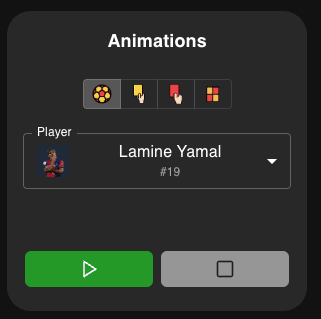
The animations controller is used to trigger visual animations on the screen for important match events. These animations improve the spectator experience by highlighting key moments in the match.
Supported events:
- Goal
- Yellow card
- Red card
- Offside
Operation:
- Select an event: choose the desired event from the selection.
- Select a player or team: if you select a player, their picture is shown in the animation. If you select the General option, the team picture is shown instead.
- Start the animation: press the Start button to play the animation. It appears automatically on the screen.
- Stop the animation: press the Stop button to hide the animation.
After stopping, all selections (event and player/team) are reset automatically.