Playlists: manage media and videos
Create and manage playlists of videos, images and mixed media for your scoreboard in LemonScore. Set display durations and run sponsor loops and clips.
With LemonScore Pro and Enterprise you can create and manage playlists to display videos, images and mixed media content on your scoreboard or LED wall. Playlists are ideal for sponsor advertising, highlight clips, announcements or pre-match loops.
Creating a playlist
- Navigate to Playlists in the main menu.
- Click New playlist.

Enter a name for your playlist (e.g. Sponsor advertising, Pre-match loop).
Adding files to the playlist
Add media files by dragging and dropping them into the playlist or by selecting them via Menu → Add.


Supported file types:
- Images: JPG, PNG
- Videos: MP4, MOV, AVI (codec support may vary by platform)
You can mix images and videos in the same playlist.
You can select several files at once. After choosing the files in the file browser, confirm the upload in the upload dialog.

Setting the display duration
Every file in your playlist has a duration control on the right-hand side:
Images:
Enter any duration in whole seconds. Example: entering 10 shows the image for 10 seconds before switching to the next one. To display a single image indefinitely, we recommend a duration of at least 10 seconds and enabling the loop button in the playlist controller.
Avoid extremely high values (e.g. 999999 seconds), as this can affect stability.
Videos:
The duration cannot be set manually. The playback time is always determined by the video's own length.

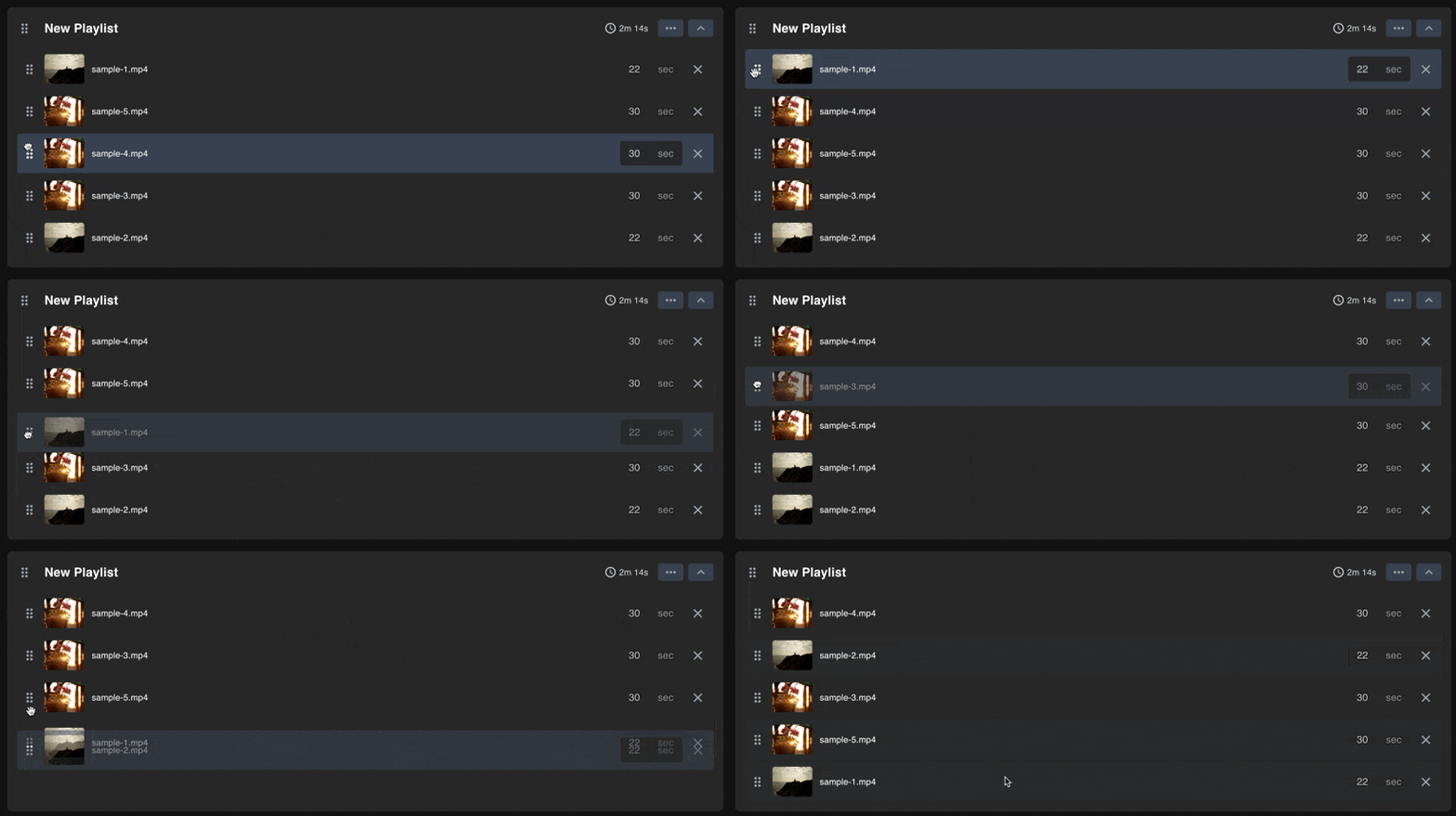
Rearranging files in the playlist
You can do this simply by drag and drop.