
Broadcast: stream overlay for OBS and vMix
Broadcast overlay for your livestream: show score, match clock and penalty shootout transparently in OBS or vMix and pick a layout from 20 templates.
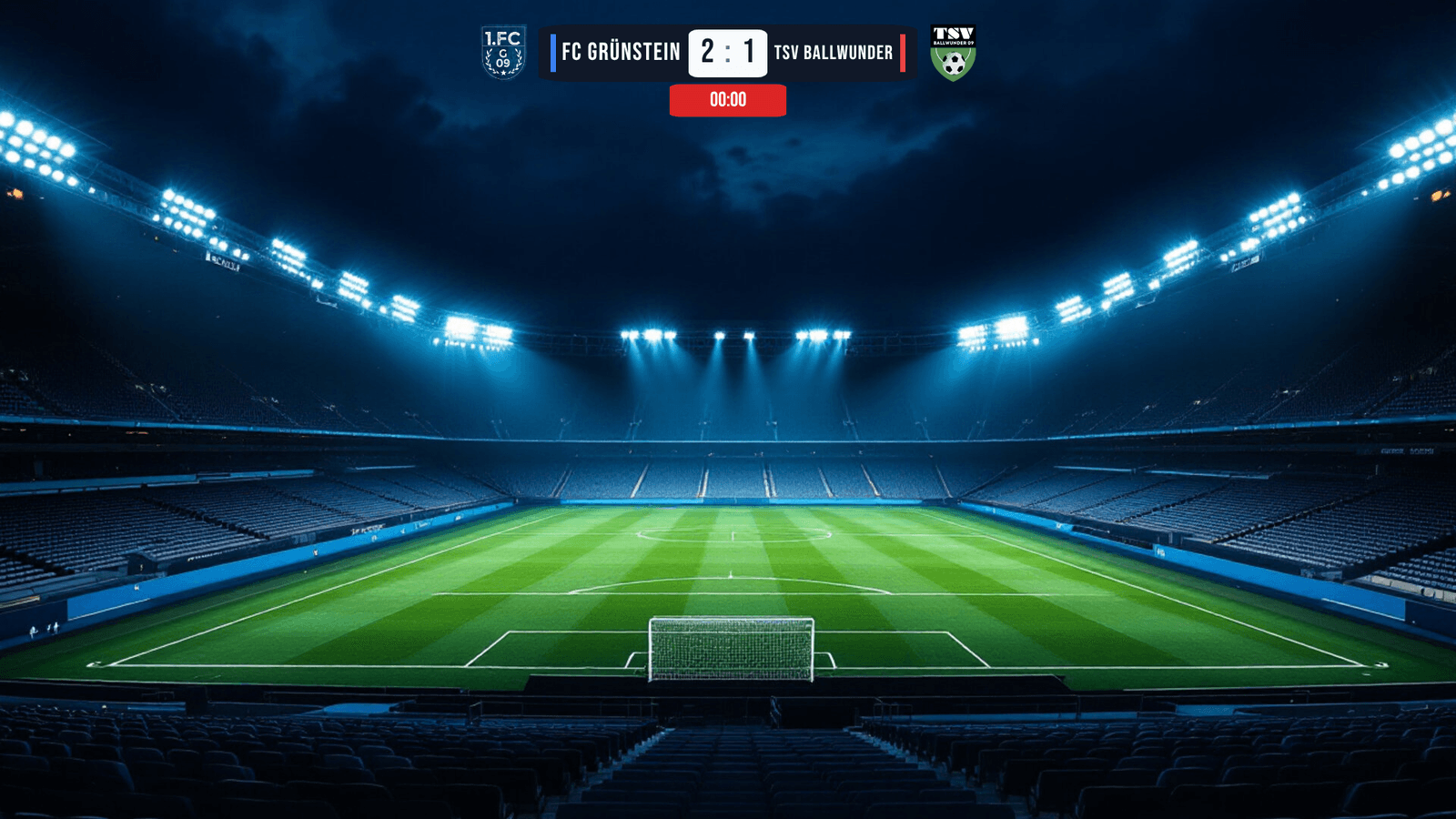
The stream overlay puts the score, crests, match clock and penalty shootout on top of the camera picture of your livestream. LemonScore gives you a link that you add to OBS Studio or vMix as a browser source. The overlay is always transparent and updates live with every input in the Controller.
The feature video shows it in about a minute.
Switch on the overlay
- Open Settings › Broadcast.
- Switch on Broadcast / Stream overlay. Below it you see Running on port 4002.
- Under the network This computer, click the copy icon (Copy link).

Add the overlay in OBS Studio
- In OBS, click + under Sources and choose Browser.
- Paste the copied link into the URL field.
- Set Width to 1920 and Height to 1080.
- Click OK and drag the source above your camera source in the list.
In vMix, add the link via Add Input › Web Browser, also at 1920 × 1080.
Stream from another computer
If OBS or vMix runs on a second computer in the same network, allow the overlay on that network:
- In Settings › Broadcast, switch on the row of your network adapter (for example
eth0oren0, with its IP address below). - Copy the link that appears under that row.
- Add it on the streaming computer as a browser source.
Only the networks you switch on are reachable. By default only This computer is on.
Choose the layout
Broadcast layouts lists all overlays. One layout is used for the match (badge Match) and one for the penalty shootout (badge Penalty shootout). When a shootout runs in the Controller, the overlay switches to the shootout layout by itself.
- Click the ⋮ menu of a layout.
- Choose Use for match or Use for penalty shootout.


Create a layout from a template
- Under Broadcast layouts, click Templates.
- Pick one of the 10 match templates or the 10 shootout templates and click Use template.
- Adjust the layout in the editor, for example fonts, colours or positions, and save it.
For an empty layout, click New broadcast layout. The editor works like the layout editor; the background always stays transparent.

Good to know
- The overlay shows the score, teams, crests, the match clock with stoppage time and the penalty shootout. Animations, playlists and the ads banner only appear on the Screen, not in the stream.
- You don't need to reload the browser source: layout changes and a new selection show up in the stream straight away.
- Create a new link (the icon with two arrows next to the link) stops the old link at once. Paste the new link into OBS or vMix afterwards.
- If OBS shows a red note "invalid or outdated link", copy the current link again from Settings › Broadcast.
- The overlay uses port 4002. If the streaming computer runs a firewall, it must allow this port.