Control the Scoreboard from Your Phone: Web Remote and App
Control the scoreboard from your phone: run score, match clock and animations from the touchline, in the browser or with the LemonScore app.

Dario Tschannen
Published on
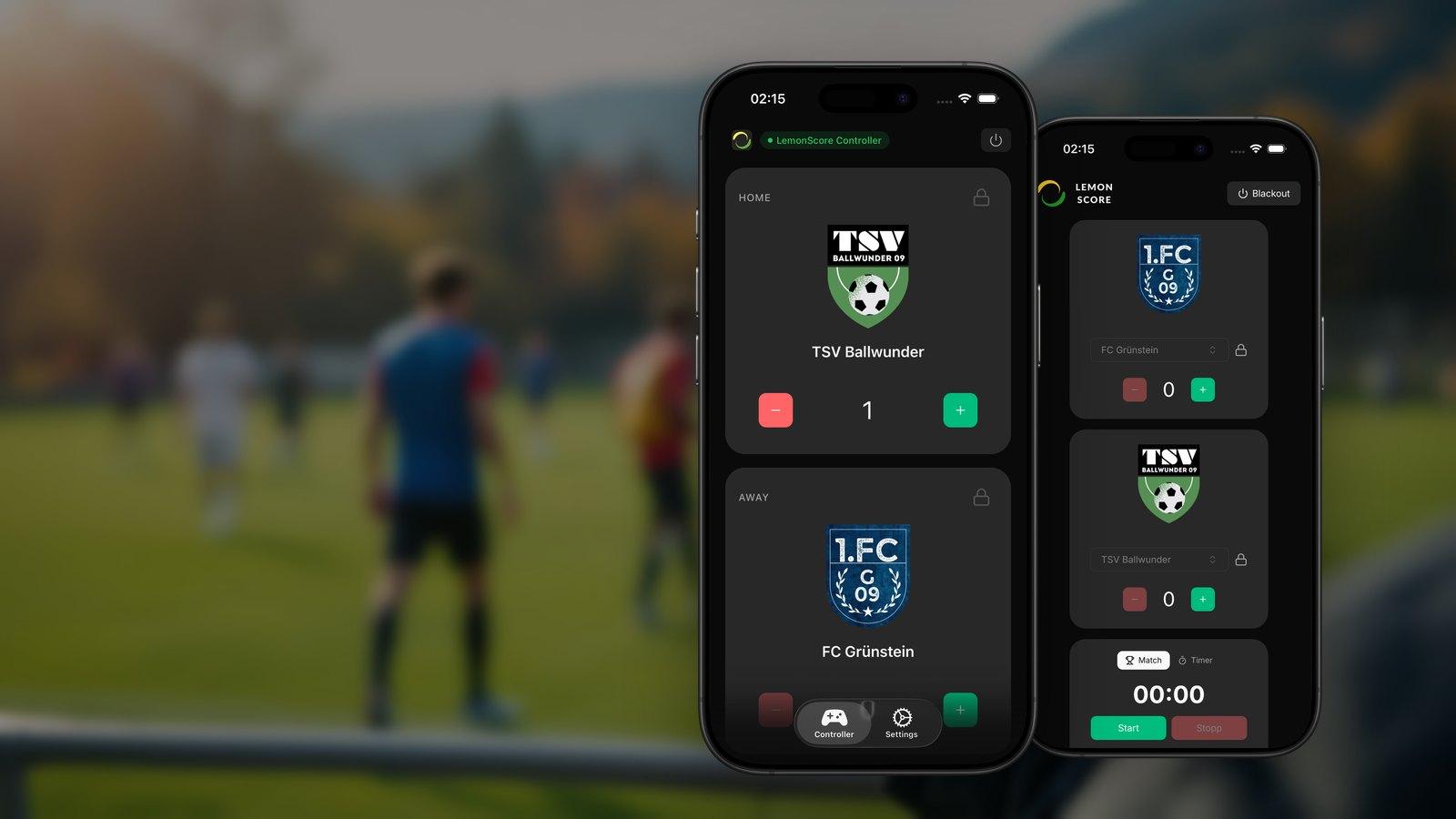
When you can control the scoreboard from your phone, nobody has to sprint to the laptop after a goal. The announcer can sit in the stand, the timekeeper can stay on the halfway line, and the LED wall still shows the right score within seconds. LemonScore gives you two ways to do it: the web remote in any browser and the LemonScore app for iPhone, iPad and Android. Both are included in every plan.
This post explains how the connection works, what you can run from the phone, what a match day looks like with it, and what to check when the phone cannot find the computer.
Why control the scoreboard from your phone?
At most grassroots clubs, the scoreboard computer sits wherever the cable to the LED processor reaches: in the kit room, in a small announcer's hut or under a table by the clubhouse. That is rarely the best spot to follow the game. With a phone in your hand, things change:
- Stand where you like: run the scoreboard from the bench, the stand or the halfway line while the computer stays safely plugged in.
- No running back and forth: goal, match clock and animation are one tap away, even if the laptop is 50 metres away.
- More than one operator: several phones, the web remote and LemonScore itself can all control the scoreboard at once. Everyone sees every change straight away.
- Easy cover: if the regular announcer is off sick, the youth coach takes over on their own phone. All they need is the Wi-Fi and the PIN.
At youth tournaments with games back to back, this saves a lot of walking. For an example of splitting the work into roles, see our post on the remote function.
Two ways onto the phone, browser or app
Both options connect to the same remote control in LemonScore. It runs a server on port 4000 on the computer, protected by a 6-digit PIN. The difference is how the phone finds the computer and how it feels to use.
| Web remote | LemonScore app | |
|---|---|---|
| Installation | none, runs in the browser | App Store or Google Play |
| Devices | any phone, tablet or laptop with a browser | iPhone, iPad, Android |
| Finding the computer | scan the QR code or type the address | Auto Discovery on the Wi-Fi, otherwise Manual IP |
| Reconnecting | open the address again, enter the PIN | connects straight to the computer you used last |
| Cards | same cards as the controller | same cards as the controller |
| Requirements | remote control enabled in LemonScore | remote control enabled, LemonScore 1.5.0 or later |
The web remote suits helpers who only step in now and then. For the regular announcer who runs the board every weekend, the app is more convenient: open it and you are connected.

What you can run from the phone
The web remote and the app show the cards of the controller in the same order as in LemonScore. Cards you have hidden on the controller are missing on the phone too, so the announcer only sees what they need.
- Teams: choose the home and away team, count and correct goals.
- Clock: start and stop the match clock or the timer, set the time, add stoppage time. The quick select buttons follow the match format, for example 0', 45', 90', 105' and 120'.
- Animations: Goal, Offside, Yellow Card, Red Card, Yellow-Red Card, Substitution, Pre-Game and your own animations, with player selection where needed.
- Penalties: start a penalty shootout, record kicks and end it.
- Lineup: choose the team, show the Slideshow or the Pitch and move on.
- Music: choose a music playlist, play it and change the volume.
- Playlist and banner, Coex (LED wall brightness) and Shortcuts, if your plan includes them.
There is also Blackout, which hides the scoreboard and shows it again, for example after the final whistle. The phone and the browser both ask you to confirm, so it does not happen by accident.
The remote control itself is in every plan, Basic included. With a Basic licence, the phone hides the playlist and banner, Coex and shortcut cards, because those features start with Pro. See Licensing and the pricing page.
What the network needs
The phone and the computer have to see each other on the same local network. No internet is needed. A basic Wi-Fi router with no internet connection, or a phone's hotspot, is enough. Our post on Wi-Fi at the sports ground covers the set-ups that work well at a club.
Two things matter:
- No guest Wi-Fi: guest networks and some company networks block connections between devices on the same network. The phone then reaches the internet, but not the LemonScore computer.
- Port 4000 open: if the firewall on the computer blocks incoming connections on port 4000, no phone can reach the remote control.
The link to the scoreboard itself never runs over Wi-Fi. The computer is connected to the LED processor by HDMI. If the Wi-Fi drops, the scoreboard keeps running and you carry on at the computer.
Connect your phone to the scoreboard step by step
1. Enable the remote control in LemonScore
- Click Remote Controller in the sidebar.
- Under Network adapter, choose the network your phone is on.
- Next to PIN, click Set, enter a 6-digit PIN and click Save.
- Click Enable Remote. The status changes to Online.
IPv4 Address now shows the address, for example http://192.168.1.42:4000, with a QR code below it. If you switch on Auto Enable Remote Control, the remote control is on every time LemonScore starts. That is worth doing for a permanent installation.

2a. Connect from the browser
- Connect the phone to the same Wi-Fi as the computer.
- Scan the QR code with the phone camera, or type the address into the browser.
- Under Enter PIN, type the 6-digit PIN. The remote opens after the sixth digit.
2b. Connect with the LemonScore app



- Install the app and connect the phone to the same Wi-Fi as the computer.
- Open the app. After a few seconds, the Auto Discovery tab lists every LemonScore computer it found, with name, IP address and version.
- Tap the entry and enter the PIN.
The name shown is the Venue Name from Settings › General. If your club runs more than one pitch, you can tell at a glance which computer belongs to which field. Next time you open the app, it connects straight to the computer you used last, as long as the saved access is still valid. The full details are in the mobile app guide.
A match day with the phone
A typical Saturday at a club with a permanently mounted scoreboard might go like this:
- An hour before kick-off: the groundsman switches on the computer and the scoreboard. With Auto Enable Remote Control on, the remote is online straight away.
- Set up the teams: the announcer picks the home and away team on the phone and checks the match clock reads 00:00.
- Before the game: they play the Pre-Game animation and show the lineup as a slideshow.
- Kick-off: one tap on Start sets the match clock running.
- Goal: add the goal to the right team and play the Goal animation, picking the scorer from the player selection if you like.
- Half-time and full-time: stop the clock, run a sponsor playlist at the break (Pro and up), and hide the scoreboard with Blackout after the final whistle.
With two people, one can look after the match clock while the other handles goals and animations. Both see the same data, because every change appears on all devices straight away. Our post on the match clock in football explains stoppage time in more detail.
When the phone cannot find the computer
Most problems are down to the network, not LemonScore. Work through this list:
- Wrong network: is the phone really on the same Wi-Fi as the computer, and not on mobile data or the guest Wi-Fi? Check that the right network is selected under Network adapter in LemonScore.
- Guest Wi-Fi with client isolation: many guest networks stop devices from seeing each other. Use a separate Wi-Fi or router for the scoreboard.
- Auto Discovery finds nothing: the app searches with Bonjour and also checks the addresses on your Wi-Fi one by one. If the list stays empty, tap Enter IP manually instead and type the address from LemonScore, without
http://and without:4000. - iPhone without network access: if the app shows Local network access needed, tap Open Settings and switch on Local Network for LemonScore.
- Firewall: allow incoming connections on port 4000 on the computer.
- Connection drops: the browser and the app show Connection Lost and retry by themselves. Retry now tries again immediately.
Stream Deck and shortcuts as alternatives
Not everyone wants to use a phone. If you have a fixed operator's desk, for example in the announcer's hut, the Stream Deck plugin puts goals, match clock and animations on physical buttons. Shortcuts combine several actions into one click, such as adding a goal and playing an animation. Both are included from LemonScore Pro and work alongside the remote control. Read more in our post on Stream Deck and shortcuts. Every way to operate it, together with the other features, is on the LemonScore scoreboard software page.

Frequently asked questions
Does phone control cost extra?
No. The remote control is included in every LemonScore plan, Basic included. Some cards, such as playlist, banner, Coex and shortcuts, only appear from Pro.
Does the scoreboard need internet for the phone to work?
No. The phone and the computer only need to be on the same local network. A router without internet or a phone hotspot is enough.
Can several people control the scoreboard from their phones at once?
Yes. Several phones, the web remote and LemonScore itself can control it at the same time. Every change appears straight away on all devices and on the scoreboard.
Can anyone on the Wi-Fi change the score?
No. Every device needs the 6-digit PIN. Under Connected Devices you see every connected phone and can disconnect one with the X. It then has to enter the PIN again.
Do I need the app, or is the browser enough?
The browser is enough. The web remote shows the same cards as the app. The app is more convenient because it finds the computer on the Wi-Fi by itself and reconnects automatically next time.
Does the app work on a tablet?
Yes. The app runs on iPhone, iPad and Android devices. The web remote works in any browser, so tablets and laptops are fine too.