Match clock setup: match format, stoppage time and timer tones
Set up the match clock in LemonScore 1.6: match formats for youth games and tournaments, stoppage time behaviour, quick select and countdown timer tones.

Dario Tschannen
Published on
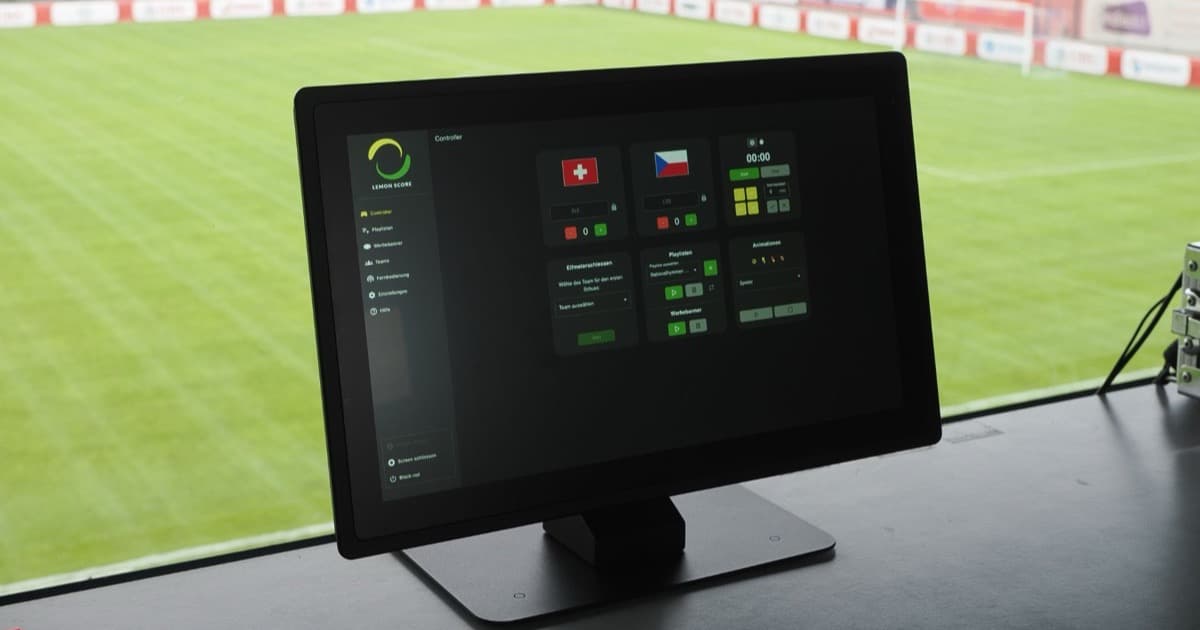
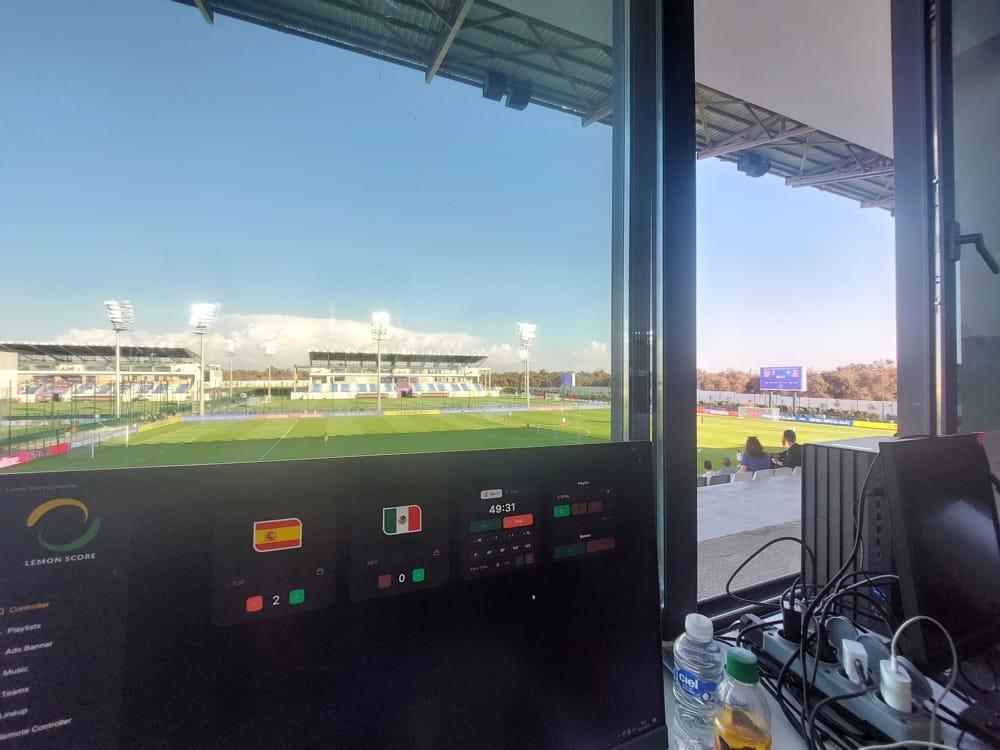
A typical Saturday at the club: the under-16s in the morning, the first team in a cup tie in the afternoon, and on Sunday the indoor tournament for the youngest players. Three different match lengths, one scoreboard. Until now the automatic stop in LemonScore only knew the fixed limits of 45, 90, 105 and 120 minutes, so for any other match length someone had to stop the clock by hand. With LemonScore 1.6 you set up the match clock with a match format, and the clock, the quick select buttons and the stoppage time all follow it. There are also new tones for the countdown timer.
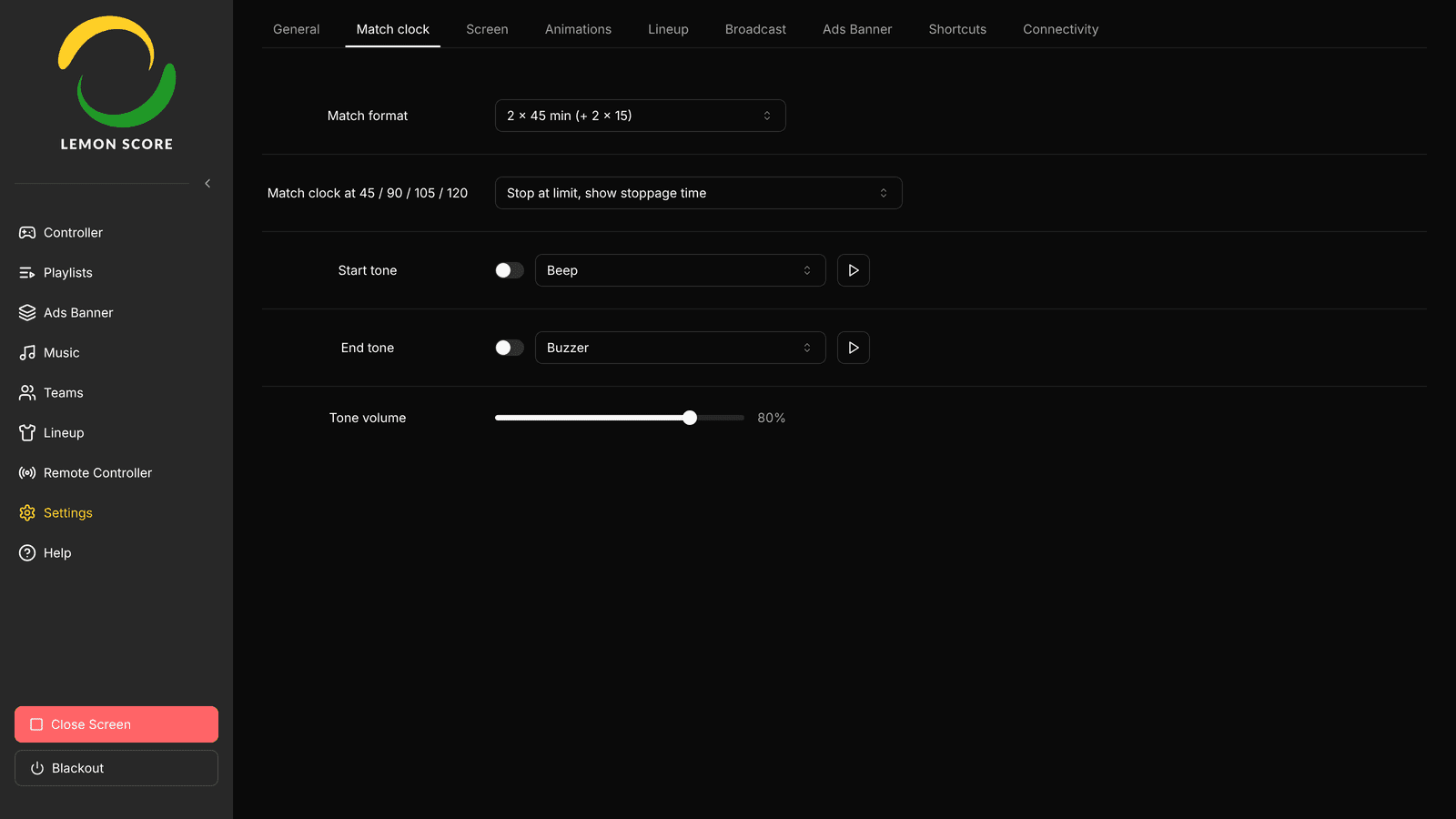
The new Match clock tab in 1.6
All clock settings now live under Settings › Match clock. You will find three things there:
- Match format: how many periods and extra-time periods a match has, and how long they last.
- Match clock at …: what the clock does at the end of each period.
- Start tone, End tone and Tone volume: sounds for the countdown timer.
Operating the clock on the controller stays the same: Start, Stop, corrections with −10, −1, +1 and +10 seconds, and the Extra Time field. All the details are in the match clock and timer docs.
Choosing a match format for the match clock
The Match format field offers 8 presets:
- 2 × 45 min (+ 2 × 15): adult football with extra time. This is the default.
- 2 × 40 min, 2 × 30 min, 3 × 20 min, 4 × 20 min, 4 × 15 min, 4 × 12 min and 4 × 10 min: without extra time, for youth football, tournaments or other sports.
If none of them fits, choose Custom. You then set Periods (1 to 8), Minutes per period (up to 90), Extra-time periods (up to 4) and Minutes per extra-time period (up to 45) yourself. For an age group that plays 2 × 35 minutes, you enter 2 periods of 35 minutes and 0 extra-time periods. The post Match clock in football: rules, stoppage time and the scoreboard lists typical youth match lengths. Your league or association rules always take precedence.
Change the match format before the warm-up, not during the match. If you switch often on a tournament day, create a button per format with shortcuts. The action is called Set Match Format.
What the match clock does in stoppage time
Under Match clock at … you choose what happens at the end of each period. The minutes in the label come from the match format, so with 2 × 45 plus extra time it reads 45 / 90 / 105 / 120.
- Continue past the limit: the clock keeps running beyond the limit.
- Stop at the limit: the clock stops exactly at the limit.
- Stop at limit, show stoppage time: the clock holds at the limit while a second counter counts the stoppage time being played. This is the default.

With the default setting, match day works like this:
- The clock reaches 45:00 and holds. The stoppage counter runs underneath.
- If the fourth official announces added time, enter it, for example 3, and confirm with the green tick.
- When the referee blows for half-time, click Stop. The counter and the added time disappear, and the clock stays at 45:00.
- At kick-off of the second half, click Start. The clock carries on from 45:00.
On the screen, the added time and the counter only appear while stoppage time is running. Where they sit in your own layout is set in the Layout Editor with the Extra-Time Badge and Stoppage Timer components. More on the editor in the post on penalty layouts and layout templates.

Quick select buttons follow the match format
Below the clock on the controller are the quick select buttons. They set the clock straight to a given minute, for example to 45' before the second half. They now follow the match format: 0' plus the end of every period and every extra-time period. With 2 × 45 min (+ 2 × 15) that gives 0', 45', 90', 105' and 120'; with 4 × 10 min it gives 0', 10', 20', 30' and 40'.

A row holds at most 6 buttons. With more periods, LemonScore drops the early extra-time ends first and then the early period ends. The end of normal time and of the last extra-time period always stay. If the clock is running, LemonScore asks before applying a quick select, so nobody resets the clock by accident in the middle of a match.
When you change the match format, the buttons update straight away, in the mobile app and the web remote as well.
Timer tones for the countdown
Besides the match clock, the clock card has a Timer mode that counts down from a set time to 00:00. Many clubs use it for a half-time countdown or for short tournament games. The timer can now play a sound:
- Start tone: when the countdown starts.
- End tone: when the countdown reaches 00:00.
There are 10 sounds to choose from: Beep, Double beep, Triple beep, Buzzer, Horn, Whistle, Chime, Ding, Siren and Countdown. The play button lets you listen to each one first, and Tone volume applies to both. The tones are off by default.

The tones only apply to the countdown timer, not to the match clock, and they play through the speakers of the computer running LemonScore. If that computer is connected to the PA system, the whole ground hears the tone. If it sits in the announcer's box, it is mainly the operator who hears it. Test this before the first match.
Keep in mind that switching between Match and Timer stops the clock, resets the time and clears the added time. Only switch modes at half-time or between matches.
Who it is for and which plan you need
The match format helps every club whose pitch hosts more than one age group, and anyone running tournaments with short games. The Match clock tab, the match formats and the timer tones are included in every plan, including the demo. What the software for your scoreboard does on match day apart from the clock is in the overview.
On the Pro plan you can also control the new settings through shortcuts and the Stream Deck: Set Match Format, Set Clock at Period End and Timer Tones On / Off. More in the post on Stream Deck and shortcuts. For everything else that is new, see the LemonScore 1.6 overview.