Animation Editor: custom animations for your scoreboard
Design custom scoreboard animations with the LemonScore 1.6 Animation Editor: starter templates, timeline, soundtrack and live player data.

Dario Tschannen
Published on
A goal goes in, the announcer calls the scorer's name and the goal animation plays on the LED wall. At a lot of clubs it looks exactly like everyone else's: default colours, default font, nothing that says which club you are watching. Then there are the moments that have no animation at all, such as the main sponsor's slot at half-time. The Animation Editor in LemonScore 1.6 lets you build these custom scoreboard animations yourself. In version 1.5.2 the editor was still a hidden experimental feature. It is now available on every plan, including the demo.
What the Animation Editor does
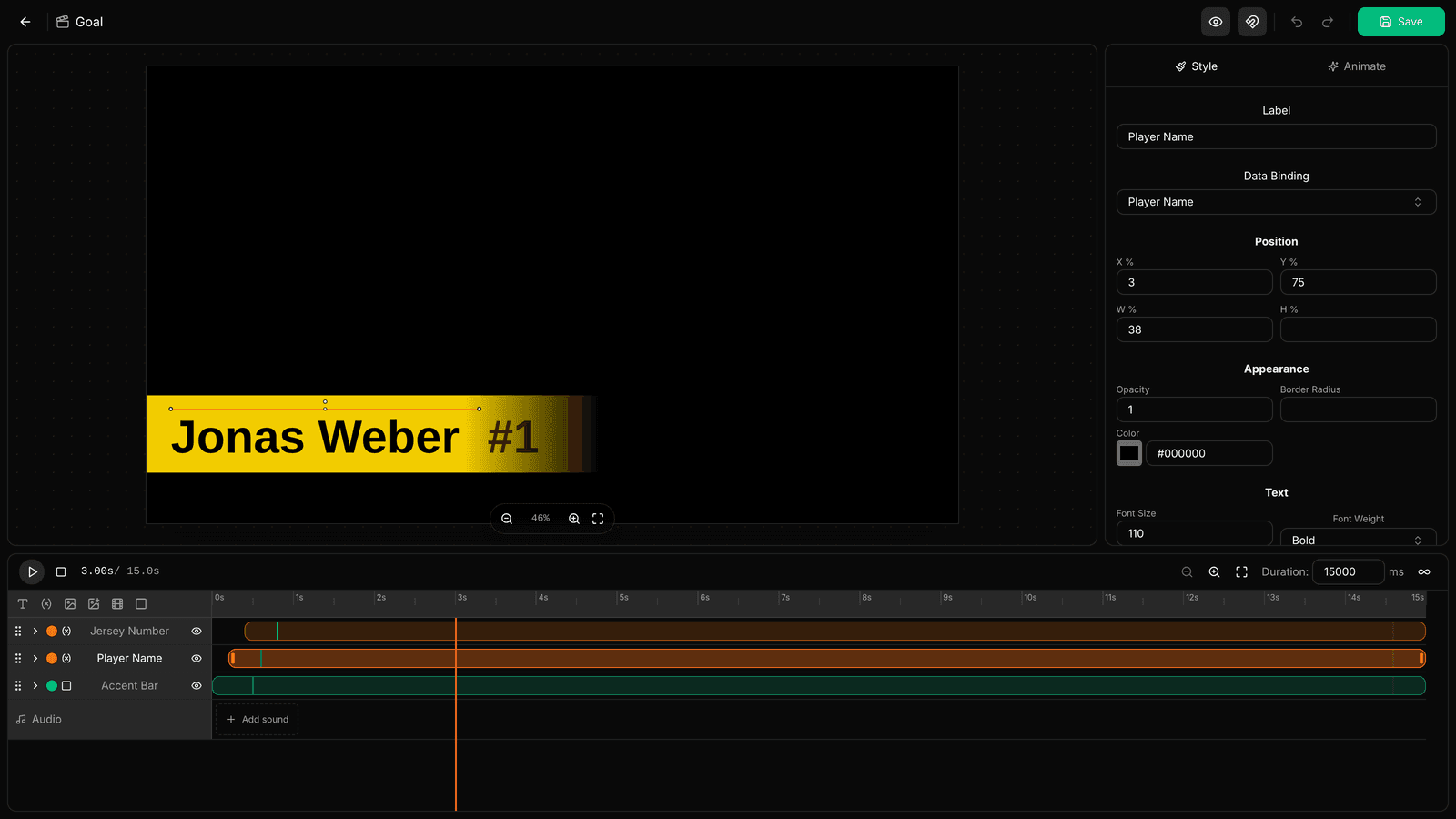
The editor is laid out like a simple video editor. The centre shows the preview at the current point in time, the right-hand side holds the Properties of the selected element with the Style and Animate tabs, and the timeline runs along the bottom with one row per element and the Audio row underneath.
An animation is made of elements, and there are 6 kinds: Text, Dynamic Text, Image, Dynamic Image, Video and Shape. Shapes include Rectangle, Circle / Ellipse, Star, Arrow and Line, filled with a solid colour or a linear or radial gradient.
The dynamic elements are what set this apart from a pre-rendered video. Under Data Binding you choose what an element shows: player name, shirt number, portrait, team logo, score or match time. When a goal is scored, LemonScore fills these fields with the player you pick on the controller. If you have stored extra player images in the team, the animation can show the goal pose or a celebration shot instead of the portrait. The post on player images and team staff explains how.
When an animation is still empty, the editor asks Start from. Blank canvas starts with no elements, Use a template offers 4 starter templates: Bold title, Lower third, Player spotlight and Logo flash. Each one is previewed with sample data.

How to create a custom animation
The built-in Default set can't be edited. Duplicate it under Settings › Animations using the ⋮ menu, or create a new set. Then:
- Open the ⋮ menu of your own set, click Edit, then New custom animation.
- Give it a name, for example "Sponsor", and choose an icon or upload your own with Upload PNG icon. Click Create.
- Add elements with the icons at the top left of the timeline and drag them into place in the preview.
- Set the movement in the Animate tab. In the Simple animation mode you pick one preset each for In, While on screen and Out. There are 15 presets in total, such as Slide in, Bounce, Pulse, Flash and Zoom out. Speed, Move and Feel fine-tune them.
- In the Audio row, click Add sound. In the Choose audio section dialog, drag the highlighted window to the part of the track you want and confirm with Use this section.
- Click Save or press Ctrl+S (Mac: Cmd+S).
If you want more control, switch to Advanced. Every property then gets its own keyframes: click the stopwatch next to a value in the Style tab, move the playhead and change the value. For the soundtrack you can set the volume, a start delay and fades of up to 4000 ms. The full walkthrough is in the Animation Editor docs.
Custom animations on the controller, on a phone and on a shortcut
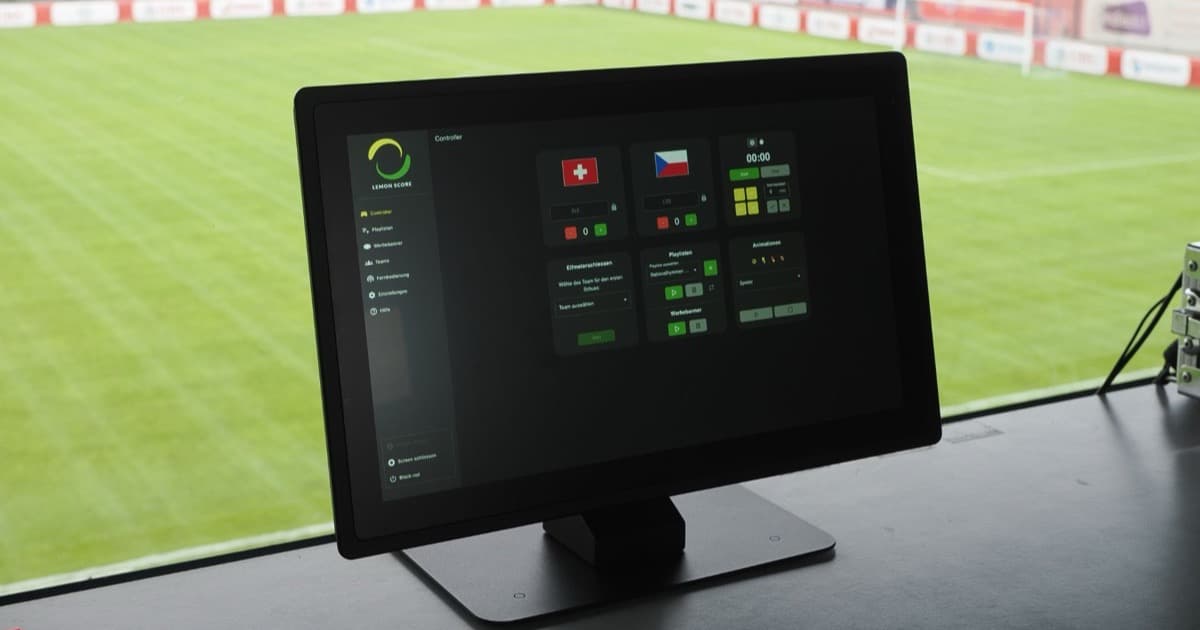
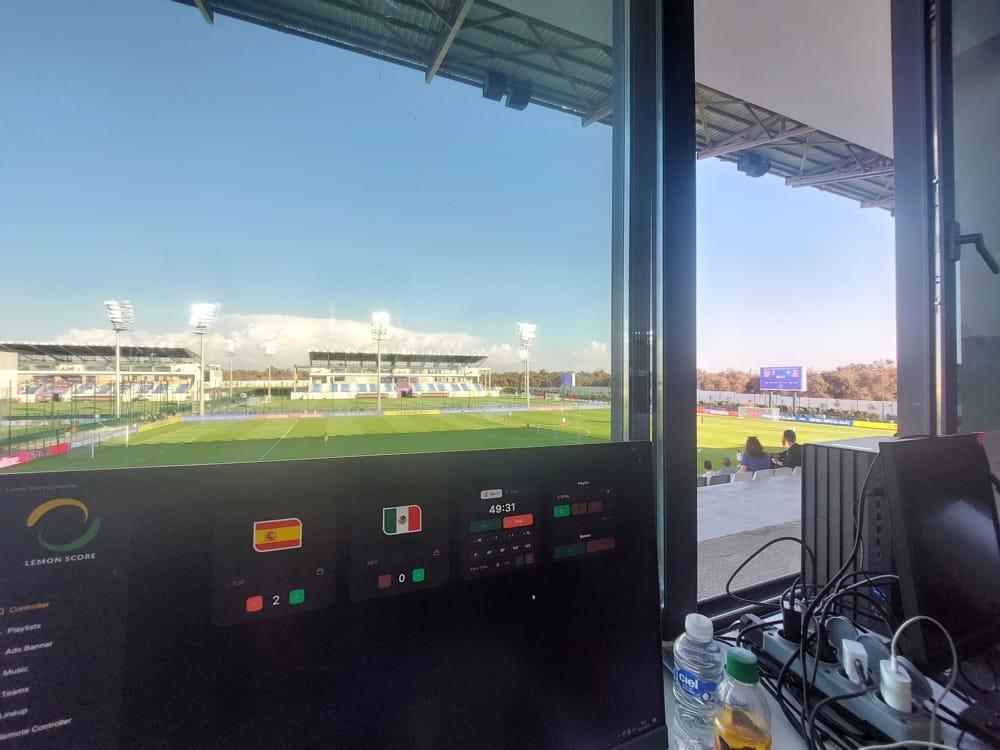
Custom animations in the active set get their own tile on the Animations card of the controller. If the animation uses player data, the player picker opens just as it does for a goal. Otherwise the card shows both team logos and Play Animation.
The same tiles appear in the browser-based remote control and in the mobile app. So the announcer can fire the sponsor animation from a phone while someone else runs the match clock on the laptop. With shortcuts you can put a custom animation on a single button, for example together with a music track, and on a Stream Deck that becomes a physical key. More on that in the post on Stream Deck and shortcuts.
The controller card shows at most 8 tiles, and the built-in animations count towards that. If you need several custom animations on the controller, hide rarely used ones such as Offside with the eye icon (Hide from controller) in the set overview. Shortcuts and the API can still play hidden animations.
The slides of the team lineup are designed in the same editor. Once you have built a goal animation in club colours, you already know how to style the lineup.
Share sets, use templates, lose nothing
- Design once, reuse everywhere: the copy icon, Copy Layout to..., transfers the design of the goal animation to the yellow card, red card and the other animations of the set. After that you only change the title and colour.
- Check with real data: Preview Data (eye icon) lets you pick a team and a player from your own teams. That shows you straight away whether a long surname still fits in the lower third.
- One after the other: select several elements and click Stagger entrances. They then appear in sequence instead of all at once.
- Build at home, install at the ground: Export saves a whole set with all its images and sounds as an
.lsanimfile, Export animation saves a single animation as.lsanimt. On the club computer, load the file with Import. - Install ready-made sets: Templates opens the LemonScore online gallery, and Install adds a set to your list. You can also browse them on the templates page.
- Lose nothing: if LemonScore closes unexpectedly while you are editing, the editor offers Restore draft the next time you open that animation.
- Change the starter template: a starter template on its own does not count as a change. Adjust at least one element and save, otherwise the animation stays empty.
Who the Animation Editor is for
The editor is aimed at clubs that use their scoreboard for more than score and match clock: sponsors, presentations, the teams walking out. If you have no time for design work, the Default set is still a sound choice and adapts to any resolution. What the scoreboard software handles on match day besides animations is in the overview.
The Animation Editor and custom animations are included in every plan, Basic, Pro and Enterprise, and in the demo, which runs for 15 minutes at a time with all Pro features. Shortcuts and Stream Deck need the Pro plan, the API needs Enterprise. For everything else that is new, see the LemonScore 1.6 overview.