Player Images and Team Staff: 8 Images per Player in LemonScore
Player images for the scoreboard and animations: up to 8 images per player, player positions, and staff such as the coach or physio in every team.

Dario Tschannen
Published on
At the start of the season the club photographer spends two hours on the pitch with the first team. They come back with portraits, celebration shots and full-length photos in the club kit. Yet every goal on the scoreboard still showed the same passport-style photo, because up to version 1.5.2 each player had exactly one image. Version 1.6 lets you store up to 8 player images per player, one per purpose. On top of that, players now have positions and each team has its own staff section, from the coach to the team doctor.
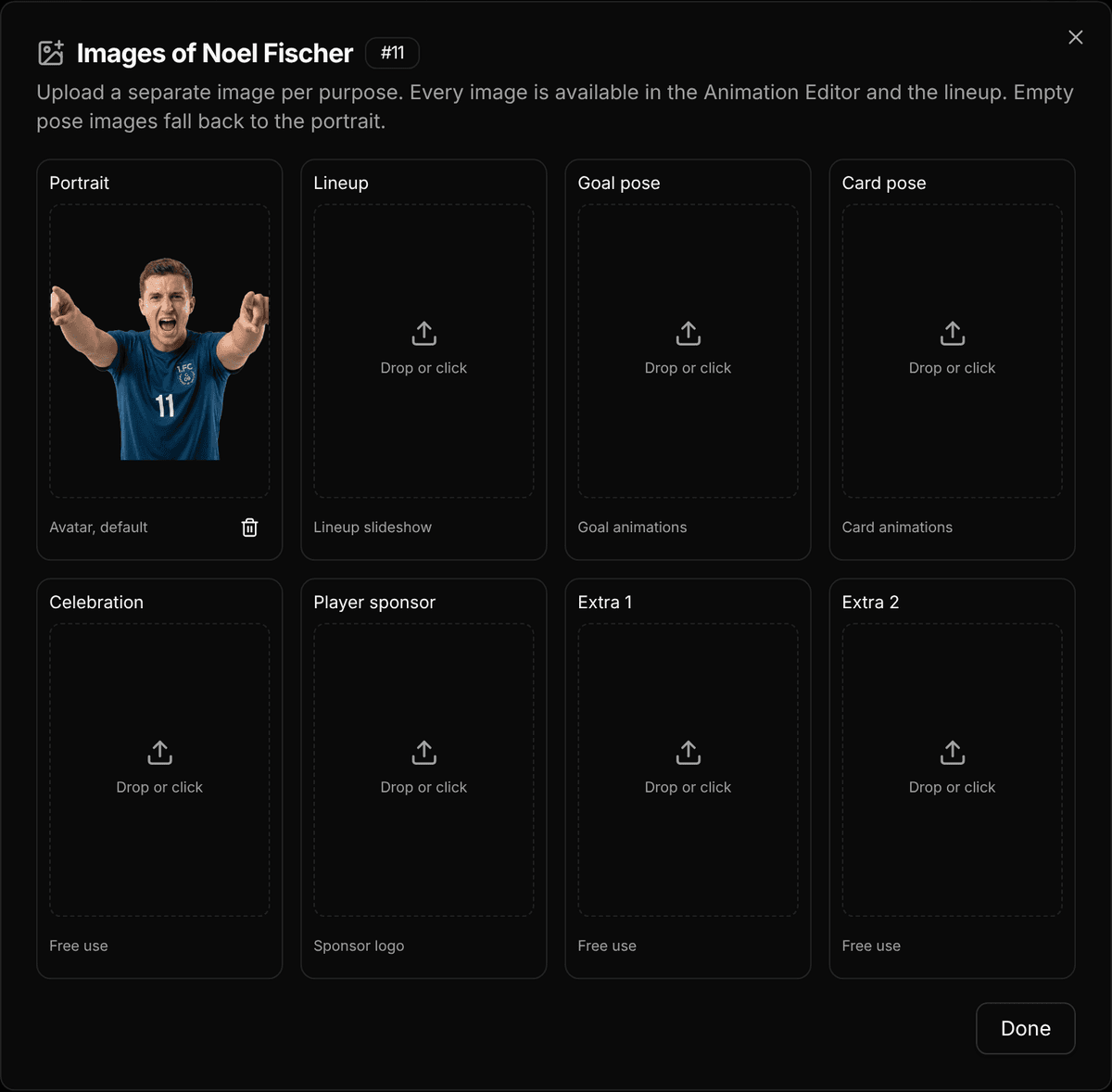
Eight image tiles per player
Each tile has a fixed purpose, so LemonScore knows which image to show where:
- Portrait: the default image, as before.
- Lineup: for the lineup slideshow, for example a full-length photo.
- Goal pose: for goal animations.
- Card pose: for yellow, red and second-yellow animations.
- Celebration: free to use in your own animations.
- Player sponsor: for example the logo of a personal sponsor.
- Extra 1 and Extra 2: free to use.
You don't have to fill every tile. Empty Lineup, Goal pose, Card pose and Celebration tiles fall back to the portrait automatically. If all you have is portraits, the player still shows up everywhere. Player sponsor, Extra 1 and Extra 2 stay empty unless you upload something.
How to upload player images
- Click Teams in the sidebar, then the team's card. The Edit Team dialog opens.
- In a player's row, click the image button (Player images). A number on the button shows how many images are already stored.
- In the Images of dialog with the player's name, drag an image onto a tile or click Drop or click.
- Click Done.

The tiles in the dialog are in 3:4 portrait format, so photos in that format fit without surprises. To remove an image, use Remove image below the tile. The full guide is under Managing teams.
Which feature uses which player image
This is worth a closer look, because not every image appears on its own:
- Lineup, slideshow: the player slides show the Lineup image. In the lineup template you can pick a different tile under Player image, for example Celebration.
- Lineup, pitch: the player markers show the portrait. The player card that appears when the view zooms in on a player uses the same image as the slideshow. More in the post on the lineup on the scoreboard.
- Goal and card animations: the built-in Default animation set still uses the portrait. To show the goal pose when someone scores, bind a Dynamic Image in the Animation Editor to Player Image (matching the animation). This variable shows the goal pose for goals, the card pose for cards and the portrait otherwise. You can also pick Player Goal Pose, Player Celebration or Player Sponsor directly.
- Substitution: for the players coming on and going off, the animation offers their portraits only, no other image tiles.
Once you have changed an animation, it applies to every player. You set up the goal animation once, and from then on each scorer appears with their own goal pose. How to build your own animations is covered in the post on the Animation Editor.
Positions and team staff such as coach, physio and team manager
Every player row now has a Position: Goalkeeper, Defender, Midfielder or Forward. If you leave it, the row shows No position. The lineup takes this position as its default, and you can overwrite it there for each match, for example with "Right back" if you want more detail.
Below the players, the Edit Team dialog now has a Staff section. Add staff adds a row with the position Coach. You can choose from:
- Coach
- Assistant coach
- Goalkeeper coach
- Fitness coach
- Physio
- Team manager
- Team doctor
Staff can have a portrait and further images too. They have no shirt number and don't count towards the number of players on the team card. Their moment comes on the intro slide of the lineup: there you choose under Staff who appears. If you choose nobody, it is the coach.
Tips for photo day and upkeep
- Bring a shot list: plan a portrait, a full-length photo for the lineup and a celebration pose for each player. That covers the most important tiles.
- Same background: photos taken against the same backdrop look calmer on the screen when the images run one after another.
- Make player sponsors visible: the Player sponsor tile can appear in the lineup and in your own animations. The Sponsor lineup template is built around it.
- Keep a backup: a backup saves teams, staff and all player images. See Backup and restore.
- Take care when deleting: a player is deleted in the dialog without a prompt, together with their images.
Who it is for, and which plan you need
Player images, positions and staff are part of team management and included in every plan, Basic too, and in the demo. They matter to any club that shows players in animations or in the lineup. If you have only stored portraits so far, you don't need to change anything: everything works as before, and you add further images once the photos are ready. Team management, animations and the lineup in context are shown on the page for the LemonScore software.