Livestream a Football Match: A Club Guide to OBS Studio
How to livestream a football match as an amateur club: camera, upload speed, YouTube activation, OBS step by step, a score overlay and player privacy.

Dario Tschannen
Published on
Grandparents who live too far away, an away fan stuck at home with flu, a main sponsor who wants to see how their board looks on camera: every club has reasons to livestream a football match. The good news is that a decent stream needs neither an outside broadcast van nor a media team. A camera, a laptop running the free software OBS Studio and a stable internet connection will do. This guide takes you step by step through the kit, the platforms, the OBS settings and the legal points worth settling before your first kick-off.
What you need to livestream a football match
Camera, from smartphone to camcorder
There are three realistic routes, and they differ a lot in effort:
| Option | How the picture reaches the stream | Good for |
|---|---|---|
| Smartphone, straight from the YouTube app | No laptop and no OBS, but also no overlay of your own | First attempts, youth tournaments for a small audience |
| USB webcam | Plugged into the laptop, added in OBS as a Video Capture Device | Short distances, e.g. an artificial pitch with a stand close to the touchline |
| Camcorder or camera with HDMI output | Through an HDMI capture card (USB) on the laptop, added in OBS as a Video Capture Device | Regular broadcasts with zoom across the whole pitch |
For football, optical zoom matters most. A pitch can be up to 100 metres long, and a wide-angle shot from the touchline turns players in the far penalty area into dots. Once a club streams regularly, a camcorder with optical zoom and a clean HDMI output is the best choice for most.
If you want to stream straight from a phone through the YouTube app, your channel has to meet YouTube's requirements for mobile live streams. According to YouTube Help, these include at least 50 subscribers. With OBS on a laptop, that threshold does not apply.
Tripod and camera position
- High up and level with the halfway line: viewers see both penalty areas and can follow the game. A scaffold, a stand roof or the clubhouse balcony are ideal.
- A sturdy tripod: a lightweight photo tripod shakes in the wind. A video tripod with a fluid head lets you pan smoothly.
- Sun behind you: plan the position around the kick-off time. Shooting into the light makes the picture flat.
- Power: run the camera and laptop from the mains, not the battery. An extension reel from the clubhouse is worth its weight in gold.
Laptop
OBS Studio runs on Windows, macOS and Linux. What matters is that the laptop can encode video in real time. Many laptops have a hardware encoder in their graphics chip for this. In OBS it appears under Settings › Output as the Video Encoder, with NVENC, QSV, AMD or Apple in its name, and it takes a lot of load off the processor. Before your first match, run a test stream for at least one half to see whether the laptop copes.
Internet and upload speed
For streaming, upload is what counts, not download. On its encoder settings page, YouTube gives these bitrates for H.264:
| Resolution | Minimum | Recommended |
|---|---|---|
| 720p at 30 fps | 3 Mbps | 8 Mbps |
| 1080p at 30 fps | 5 Mbps | 14 Mbps |
| 1080p at 60 fps | 6 Mbps | 17 Mbps |
Add 128 kbps for stereo audio. Your connection has to sustain that bitrate for the whole match, with headroom, because dips cause stuttering. For most grounds, 720p is a sensible place to start: sharp enough to follow the play, with a much lower demand on your upload.
Measure the upload exactly where the laptop will sit, at kick-off time. A mobile router or a phone hotspot works if coverage at the ground is good. When the network is busy, say at a local derby with a big crowd, upload speed drops. How to plan networking and a hotspot at the ground is covered in the post on Wi-Fi at the sports field.
Sound for atmosphere and commentary
The camera's microphone picks up the atmosphere, and every gust of wind too. A foam or furry windshield on the microphone helps a lot. If you want commentary, use a USB headset with a microphone. In OBS you balance both in the Audio Mixer: atmosphere lower, commentary clearly on top.
Choosing YouTube, Facebook or Twitch
All three platforms accept a stream from OBS. You need a server address and a stream key. Treat that key like a password: anyone who has it can broadcast on your channel.
YouTube
YouTube is usually the first choice for clubs, because parents and fans can open the link without an account and the match stays available as a video afterwards. Two things matter before your first stream:
- Verify your channel: according to YouTube Help, you need to verify your channel and must have had no live streaming restrictions in the past 90 days. The person streaming must also be at least 16.
- Enable it in good time: enabling live streaming for the first time can take up to 24 hours (YouTube Help). So do not leave it until match day.
You find the stream key in YouTube Studio, in the Live Control Room, which you open via Create › Go live at the top right. It is easier in OBS with Connect Account (recommended), which lets OBS fetch the details itself.
According to Facebook Help, you open facebook.com/live/create, choose where the video will appear and pick streaming software as the video source. Facebook then shows a server URL and a stream key. If you like, switch on a persistent key so you do not have to set OBS up again before every match. As soon as OBS is sending, a preview appears on Facebook, and you start the broadcast from there.
Twitch
Twitch is best known for gaming, but it works in exactly the same way. Choose Twitch as the service in OBS and link your account with Connect Account (recommended).
Setting up OBS Studio step by step
OBS Studio is free and open source; download it from obsproject.com. On first launch, the Auto-Configuration Wizard opens. It asks about your goal, resolution and platform, and can estimate the bitrate with a bandwidth test. For a first setup, that is the quickest route.

Screenshot: OBS Studio 26.1, PantheraLeo1359531 / OBS Project, GPLv2, Wikimedia Commons
1. Create a scene
Under Scenes at the bottom left, click + and name the scene, for example "Match". A second scene called "Half-time" with a still image or the club crest is handy for the break.
2. Add the camera as a source
Under Sources, click + and choose Video Capture Device. Pick the webcam or HDMI capture card from the list, then drag the picture in the preview to full size.
3. Set up the audio
The Audio Mixer shows every audio source with a level meter. If the capture card carries the camera sound, it appears with the video source. Add a commentary headset via Sources › + › Audio Input Capture. Mute Desktop Audio, or the laptop's system sounds will end up in the stream.
4. Output and video settings
Open Settings:
- Under Video, set the Base (Canvas) Resolution to 1920 × 1080 and the Output (Scaled) Resolution to 1280 × 720 or 1920 × 1080. For amateur football, 30 FPS is enough.
- Under Output, set the Video Bitrate in line with the table above: for 720p, between 3,000 kbps (minimum) and 8,000 kbps (recommended). Choose a value your upload can sustain comfortably. Set the Audio Bitrate to 128 or 160.
- Under Stream, choose the Service and either connect your account or paste in the Stream Key.
YouTube also recommends a keyframe interval of 2 seconds and constant bitrate (CBR). You will find both when you switch Output Mode to Advanced.
5. Test and go live
Under Controls, click Start Streaming. At the bottom right, OBS shows whether frames are being dropped. Red or yellow values mean your upload is not keeping up, so lower the bitrate or the resolution. For the first test, set the stream to unlisted or private and watch it on your phone before you send the link round.
Adding the score and match clock with the LemonScore overlay
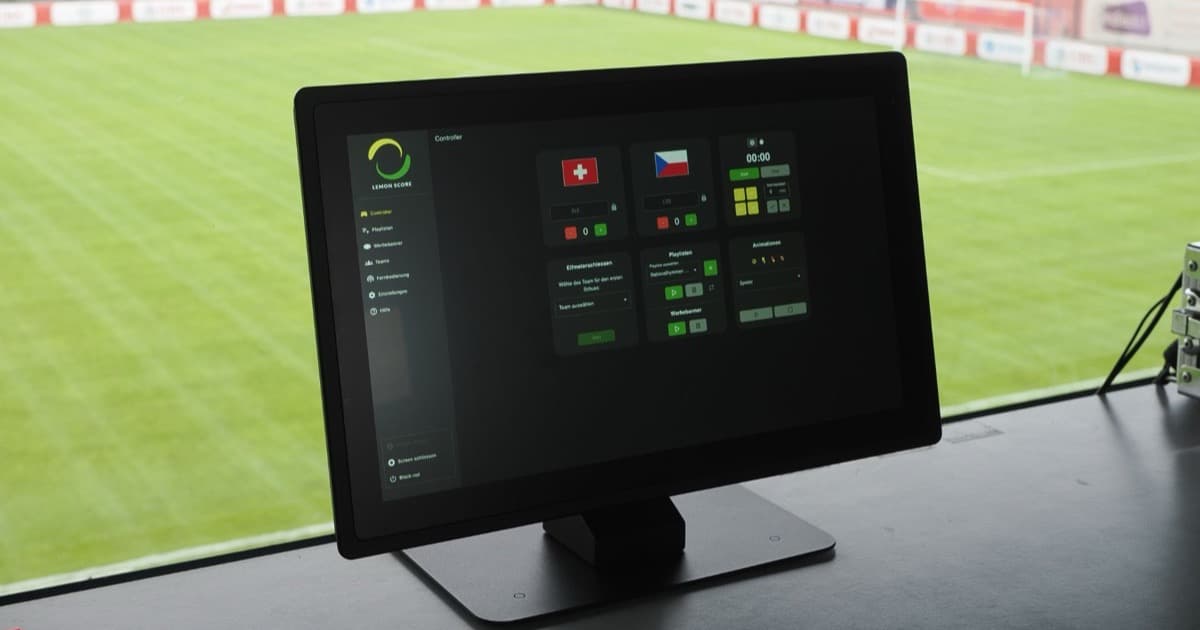
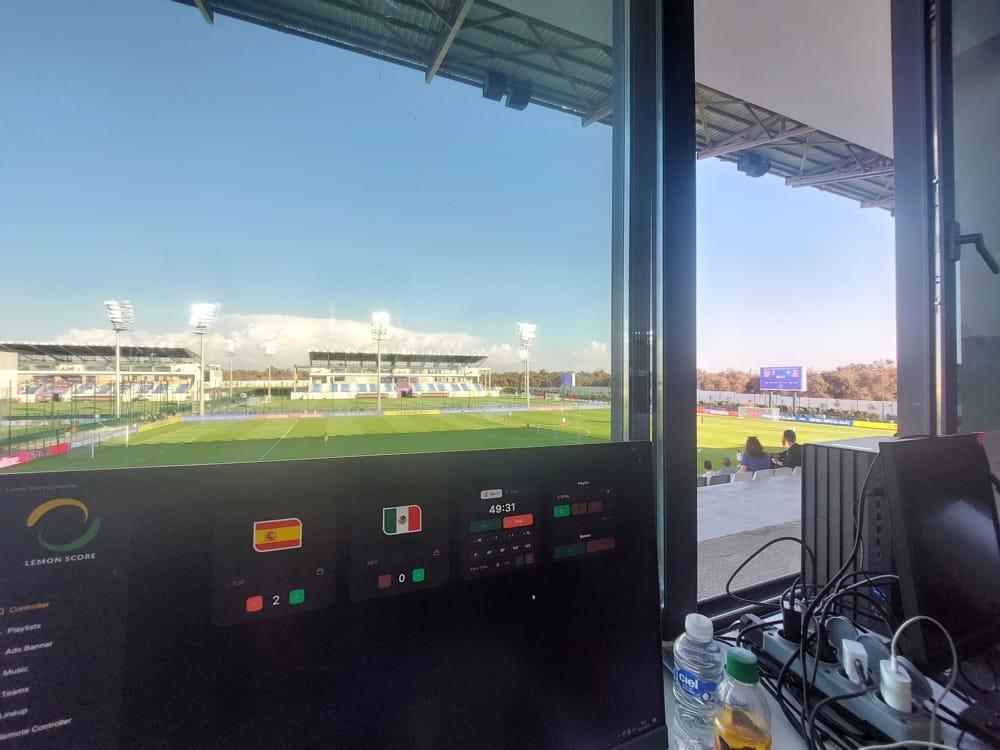
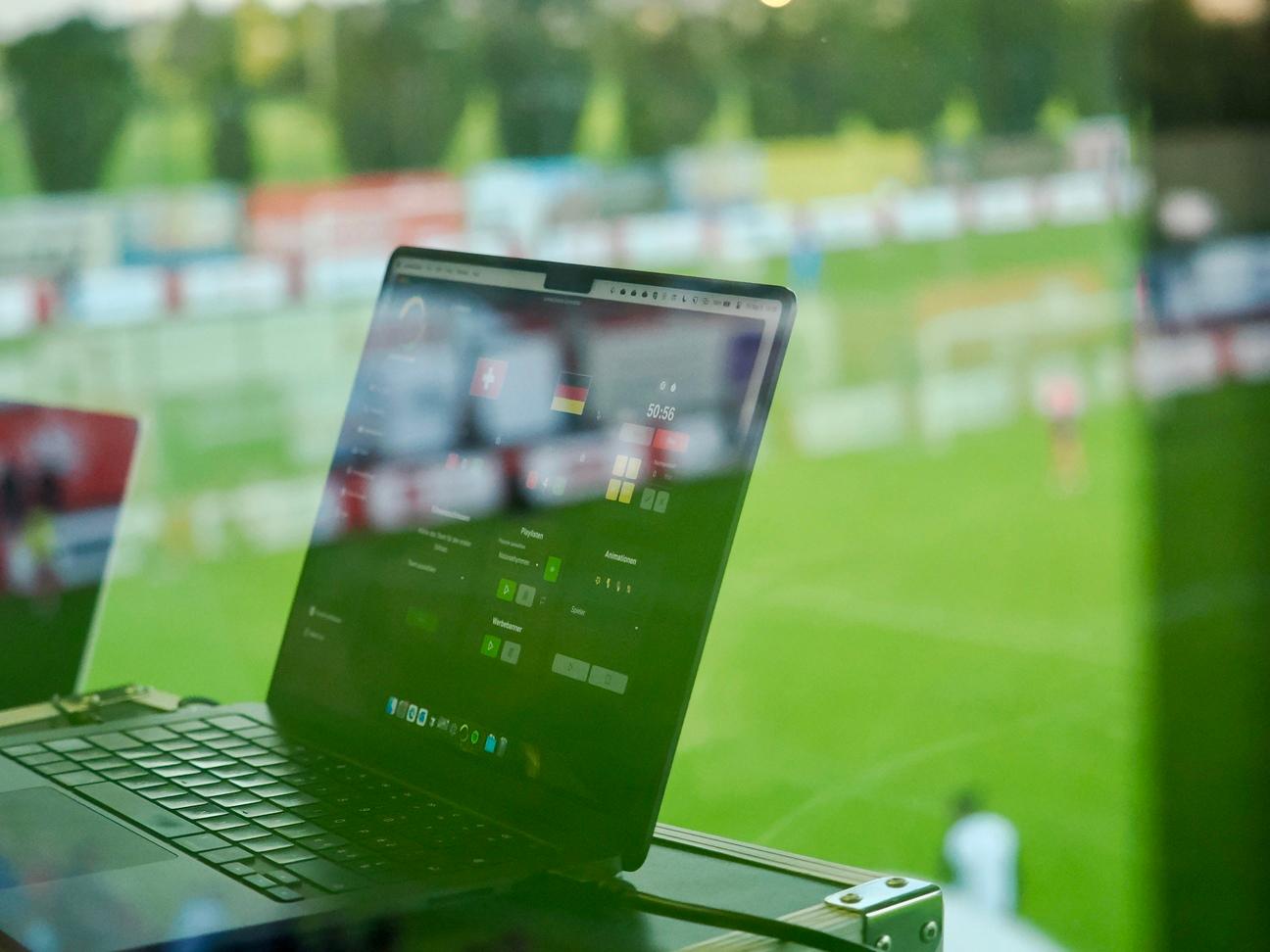
Without the score on screen, someone in the chat will ask what it is within twenty minutes. If you already run your scoreboard with LemonScore, you can show team names, crests, score, match clock and penalty shootout directly in the stream. The overlay has a transparent background and updates with every input in the Controller. The same scoreboard software keeps running the board at the ground while it feeds the stream.
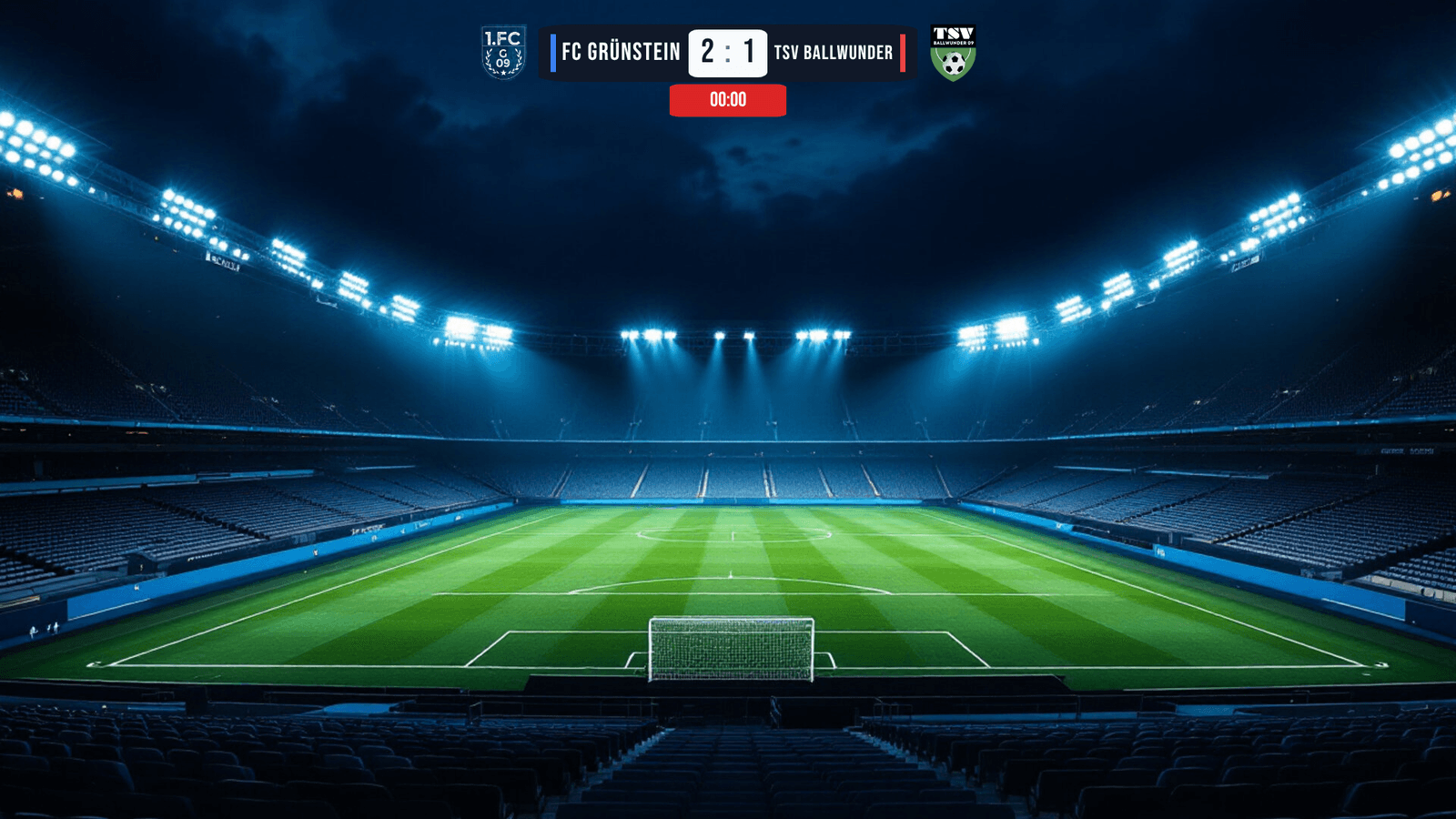
Adding it to OBS:
- In LemonScore, open Settings › Broadcast and switch on Broadcast / Stream overlay.
- Under This computer, click Copy link.
- In OBS, add a Browser source via Sources › +, paste the link as the URL and set the width to 1920 and the height to 1080.
- Drag the browser source above the Video Capture Device in the list.
If LemonScore and OBS run on different computers, you share the overlay on the network they both use. How that works, which 20 templates are available and how the overlay switches over for a penalty shootout are covered in the post on the stream overlay for OBS and vMix and in the broadcast overlay docs.

Handy for small crews: whoever is on camera can keep the score up to date from their phone with the LemonScore app. The overlay is included in LemonScore Pro and Enterprise, and you can try it in the demo.
The legal side, in brief
This is not legal advice, but it should help you ask the right questions.
Players, referees and spectators
Switzerland: a livestream shows people in public, so personality rights and the Data Protection Act apply. In its article on live streaming, the law firm Domenig & Partner states that identifiable people generally have to consent, and that making the stream available as a video afterwards needs further consent. It recommends announcing the livestream openly and early.
Germany: the Lower Rhine FA (FVN) explains in its guidance on video recordings that normal match action and wide shots of public matches can usually rest on the club's legitimate interest. Close-ups, private moments and scenes away from the pitch, however, need consent. The home club should inform people in advance and put up a clearly visible notice.
In practice, in both countries:
- Announce the stream beforehand to the visiting club, the referee and, with a sign at the entrance, to spectators.
- Film the match in wide shot rather than singling out spectators.
- No filming in the dressing rooms or of injured players being treated.
Youth teams
Stricter standards apply to children and young people. The FVN guidance says that for under-16s, consent from parents or guardians is required as a rule. Get parental consent in writing, separately for the livestream and for the recording. The visiting club cannot consent on behalf of its players, so speak to the opposing coach beforehand. If in doubt, stream youth matches privately or not at all.
Music in the stream
If the PA plays music at half-time, the camera microphone will pick it up. The platforms detect copyrighted music:
- According to YouTube Help, YouTube may replace your live stream with a placeholder image, interrupt it or end it.
- Under Meta's music guidelines, Facebook may block or mute content, explicitly including live videos.
- Twitch may mute content under its music guidelines.
The simplest fix is to switch to the "Half-time" scene without camera sound during the break. What your club has to pay for music at the ground and in the stream is explained in our posts on music licensing for football clubs in Switzerland and in Germany.
Broadcasting rights of the association
Whether a club may stream its own matches is regulated differently from one association to another. In Germany, the rights for higher leagues sit with the association: the NFV match regulations, for example, require the association's consent for any own exploitation of Regionalliga Nord matches, livestreams included. The Westphalian FA (FLVW) has a framework agreement with providers of automated camera systems and has published its own recommendations. For Swiss amateur football, we could not find a publicly available SFV rule on club livestreams. Check with your regional association before your first stream, especially for cup ties or higher leagues.
Match-day checklist
A week before
- YouTube channel verified and live streaming enabled
- Test stream run over one half, upload measured at the ground
- Visiting club, referee and, for youth teams, parents informed
Match day, 60 minutes before kick-off
- Livestream notice up at the entrance
- Tripod set up, camera and laptop on mains power
- OBS running, camera and sound checked in the Audio Mixer
- LemonScore running, overlay tested with a dummy goal, score reset
- Stream scheduled and link sent to members and fans
15 minutes before kick-off
- Start Streaming in OBS, preview checked on a phone
- "Half-time" scene ready, PA music in mind
After the match
- End the stream and check that the recording is public, unlisted or private as intended
Frequently asked questions
What does it cost to livestream a football match?
OBS Studio, YouTube, Facebook and Twitch are free. The costs are the camera, tripod, possibly an HDMI capture card and mobile data. If you already have a laptop and a good smartphone, you can start without buying anything.
How much upload speed do I need?
YouTube recommends 8 Mbps for 720p at 30 fps, with 3 Mbps as the minimum, and 14 Mbps for 1080p at 30 fps, with a minimum of 5 Mbps. Measure the upload at the ground and leave headroom.
Why can't I go live on YouTube straight away?
Your channel has to be verified, and enabling live streaming for the first time can take up to 24 hours. For mobile live streams from the YouTube app, the channel also needs at least 50 subscribers.
Can we stream youth matches?
Only with parental consent and, depending on age, the young players' own consent too. The visiting club cannot consent for its players. If in doubt, skip the public stream.
How do I show the score in OBS?
With a browser source. In LemonScore, copy the link under Settings › Broadcast and add it in OBS as a Browser source at 1920 × 1080. The score then updates automatically.
Can one person run the camera and the score?
Yes, if the camera is on a tripod. They keep the score up to date with the LemonScore app on their phone, without walking back to the laptop.