Stream Overlay for OBS and vMix: Score in Your Livestream
Stream overlay for OBS and vMix: score, match clock and penalty shootout live in your livestream, with 20 templates and a transparent background.

Dario Tschannen
Published on
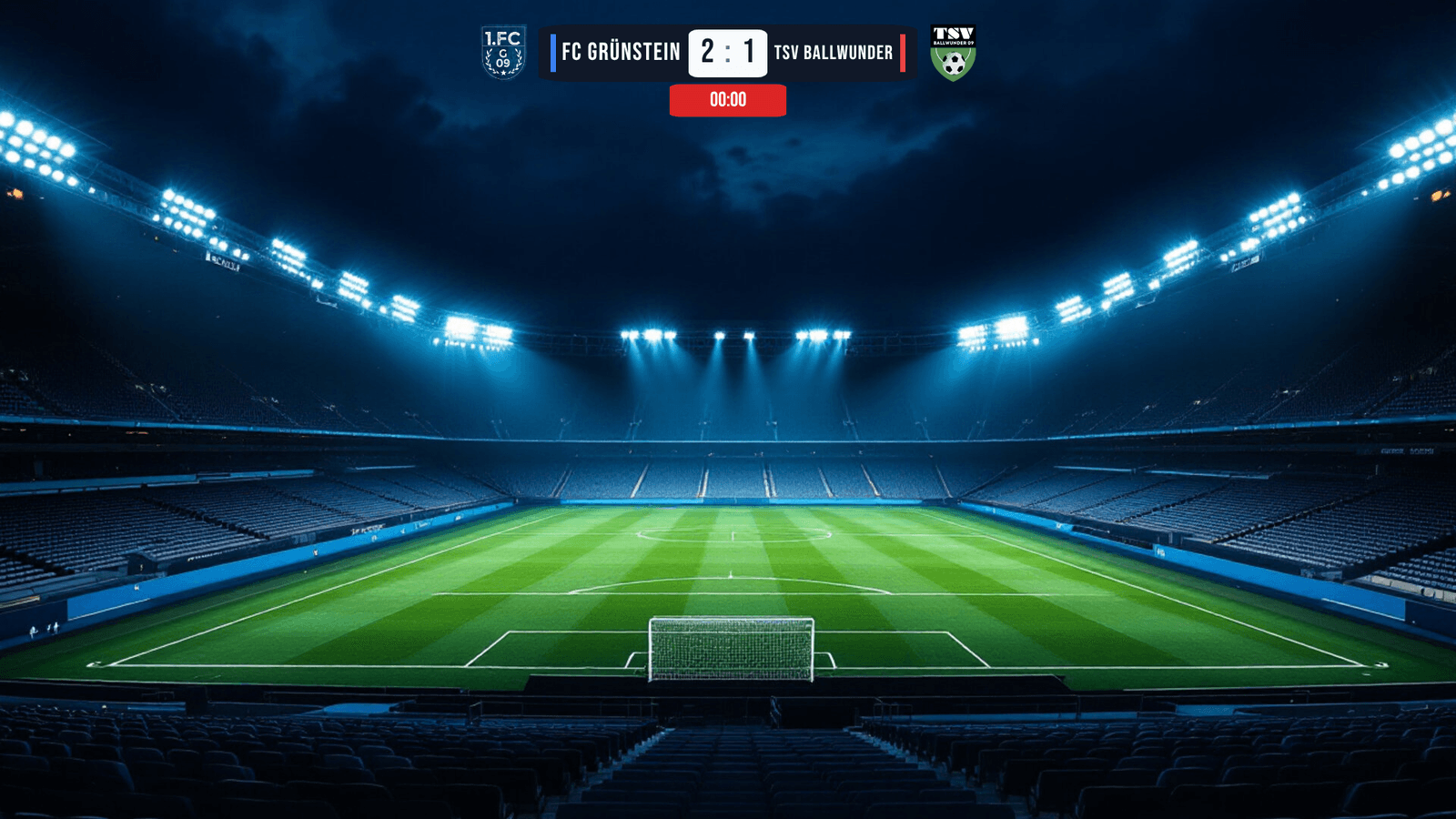
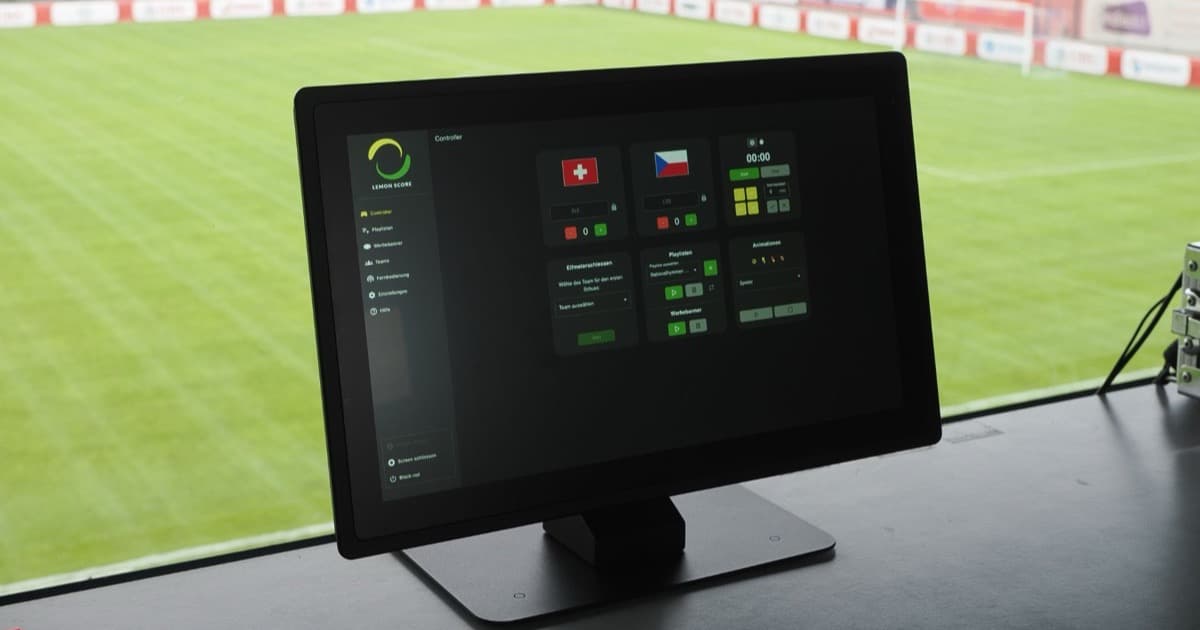
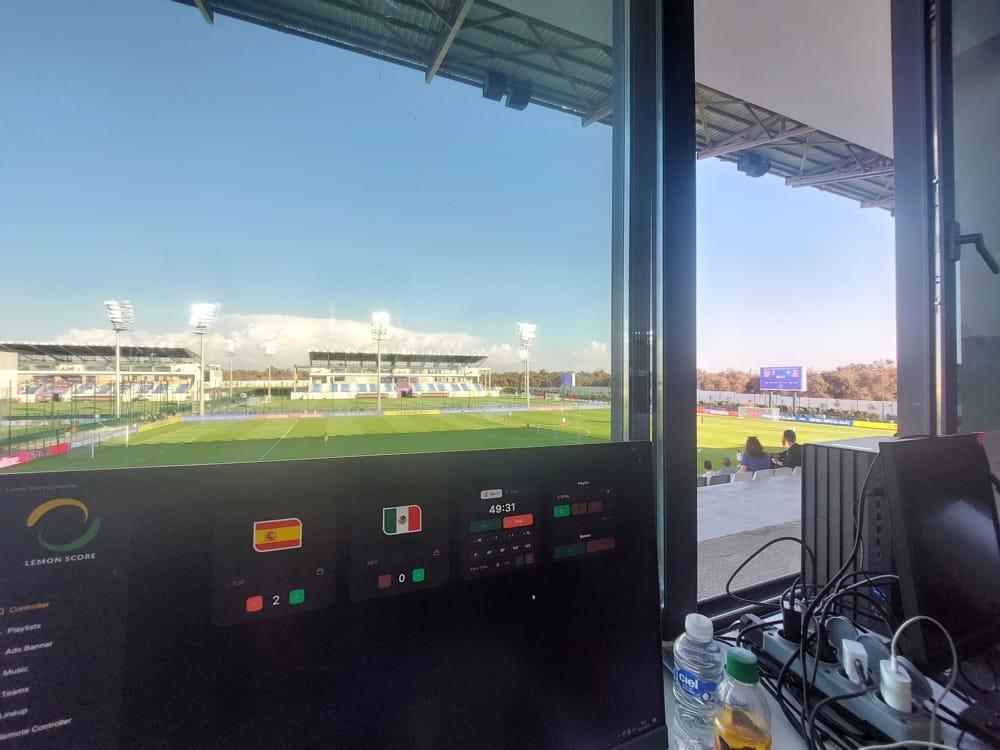
More and more clubs stream their matches, for parents, travelling fans or sponsors. The camera sits on the scaffold, OBS runs on the laptop, and twenty minutes in someone asks in the chat what the score is. If you have been typing the score into OBS by hand, you know how quickly it falls behind. LemonScore 1.6 adds a stream overlay for OBS and vMix: team names, crests, score, match clock and penalty shootout appear on a transparent layer over the camera picture and update with every input in the Controller.
What the stream overlay shows
The overlay is a separate page that LemonScore serves through a link. You add that link to OBS Studio or vMix as a browser source. It shows the data you already keep up to date in the Controller:
- team names, crests and the score
- the match clock, including stoppage time
- during a penalty shootout, the kicks of both teams
The background is always transparent, so the camera picture stays visible. A goal entered in the Controller shows up in the stream straight away, and there is no need to reload the browser source. Animations, playlists and the ads banner, on the other hand, only run on the Screen at the ground, not in the stream. That keeps the picture calm for viewers at home.
Switch on the overlay and add it to OBS
- In LemonScore, open Settings › Broadcast.
- Switch on Broadcast / Stream overlay. Below it you see Running on port 4002.
- Under the network This computer, click Copy link.
- In OBS, click + under Sources, choose Browser and paste the link into the URL field.
- Set width and height to 1920 × 1080 and drag the source above your camera source.
In vMix, add the link via Add Input › Web Browser, also at 1920 × 1080. The step-by-step guide is in the documentation under Broadcast: stream overlay for OBS and vMix.

Streaming from a second computer over the network
Often the scoreboard runs on the laptop in the press box while the stream comes from another machine. For this, Settings › Broadcast lists every network adapter with its IP address next to This computer. Switch on the network the streaming computer can reach, then copy the link that appears below it.
Only the networks you switch on are reachable. By default only This computer is on. Each link also contains a key. Create a new link generates a new key, and the old link stops working at once. That is useful if a link has ended up in the wrong hands or a volunteer has left the team. Paste the new link into OBS or vMix afterwards. The overlay itself sends nothing back to LemonScore; it only displays.
If the streaming computer runs a firewall, it must allow port 4002.
20 templates for the match and the penalty shootout
Under Broadcast layouts you choose what the overlay looks like. Templates offers 20 layouts:
- 10 for the match: for example Centre Stage, Corner Classic, Lower Third, Score Pill, Frosted Glass or Minimal Corner.
- 10 for the penalty shootout: for example Shootout Lower Third, Shootout Top Bar, Shootout Duel or Shootout Big Board.

One layout is used for the match (badge Match) and another for the penalty shootout (badge Penalty shootout). You set this in the ⋮ menu of a layout card with Use for match or Use for penalty shootout. When you start a shootout in the Controller, the overlay switches to the shootout layout by itself and shows every kick as scored or missed.

Every layout can be customised. The editor works like the layout editor for the scoreboard, for fonts, colours or positions, and the background always stays transparent. New broadcast layout starts you off with an empty canvas. How to give the shootout its own look on the scoreboard at the ground as well is covered in the post on penalty layouts and layout templates.
Tips for your club livestream
- Test beforehand: switch on the overlay before the match and enter a test goal in the Controller. You see whether its position suits the camera framing, and then reset the score.
- Small and at the edge: for camera pictures with a lot of movement, compact layouts such as Score Pill or Minimal Corner work well. Large layouts such as Shootout Big Board suit moments when play has stopped, for example before the first kick.
- Club colours: adapt the template to your club's colours. Changes show up in the stream straight away.
- Lineup before kick-off: the player introduction runs on the Screen at the ground. The post on the lineup on the scoreboard shows how it works.
Who it is for, and which plan you need
The stream overlay is for clubs that broadcast their matches with OBS Studio or vMix and no longer want to update the score by hand. It is included in LemonScore Pro and Enterprise, and you can try it in the demo. In Basic, the Broadcast tab is not shown. The same software also runs the scoreboard at the ground, so you never enter the score twice.