LemonScore Controller: run your scoreboard from a touchscreen
The LemonScore Controller starts straight into LemonScore: touch operation, a System tab, a PIN screen lock and an on-screen keyboard with Swiss layout.

Dario Tschannen
Published on
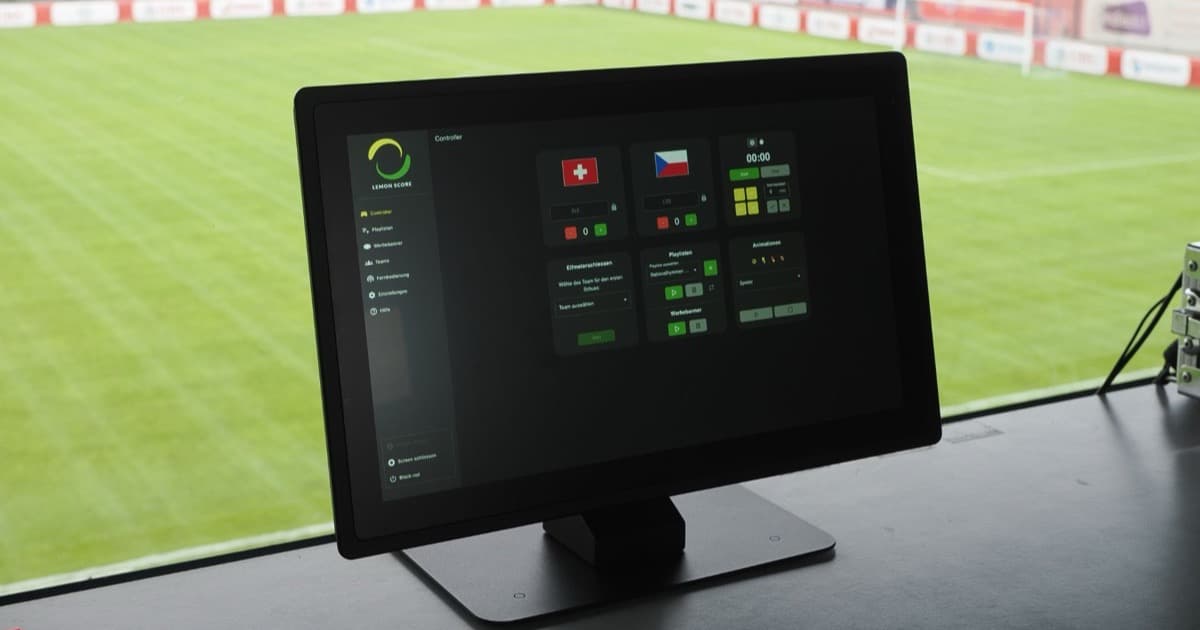
Saturday, 3.40 pm, in the announcer's booth. Last week's volunteer took the club laptop home, the spare laptop wants to install an update, and the sun is shining straight onto its screen. These are the moments the LemonScore Controller is made for: a ready-configured touchscreen device that starts directly into LemonScore when you switch it on. Version 1.6 gives the software its own way of working on this device. This post shows what is different from a laptop and how to set the Controller up for match day.
What the LemonScore Controller is
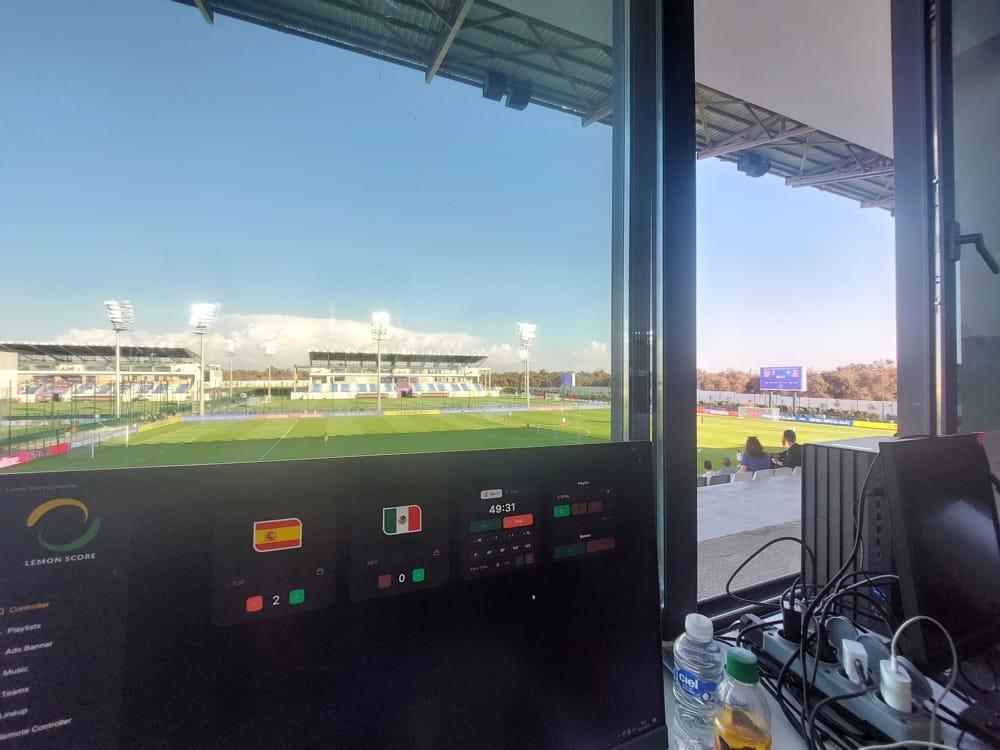
The LemonScore Controller is a computer with a touchscreen and LemonScore already installed. It stays in the announcer's booth, the control room or behind the perimeter boards and sends its picture over HDMI to the LED processor of your scoreboard. The touchscreen is rated at 1'000 nits, so it stays readable in summer. For grounds without a fixed booth there is the LemonScore Controller Case: the same touchscreen plus a Stream Deck in a hardshell case for the touchline.
Both devices, and how they compare with your own computer, are on the LemonScore Controller page. You activate your licence on the device the same way as in the desktop app, see Getting started: demo account and licence.
Touch operation instead of mouse and keyboard
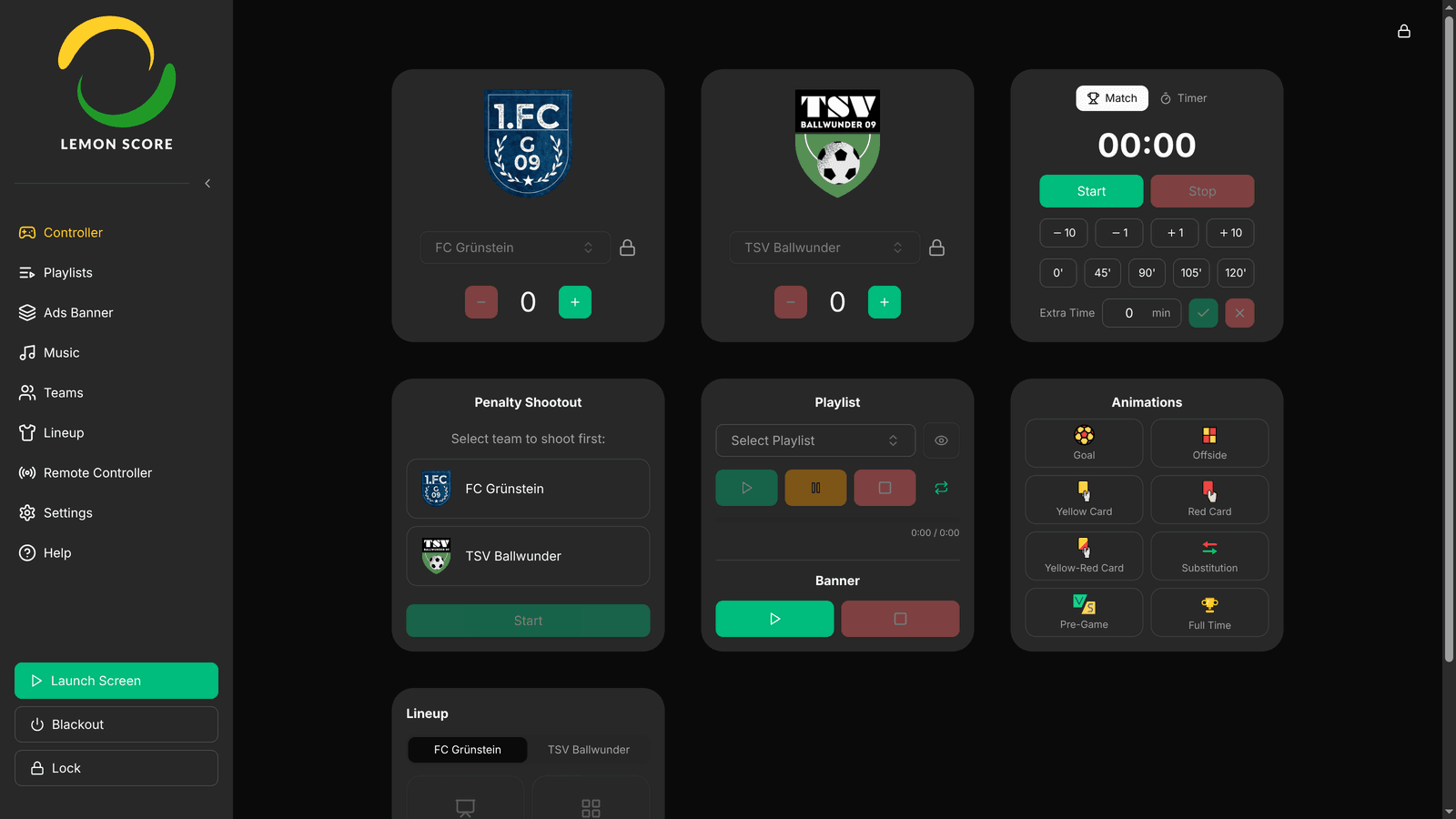
You run the scoreboard on the Controller just as you do in the desktop app: goals, match clock, animations, playlists. A few things work differently, because the device needs no mouse, no keyboard and no browser:
- LemonScore starts automatically and fills the whole screen. There is no window that anyone can move or close by accident.
- When you tap a text field, an On-screen keyboard appears at the bottom. Number fields open a number pad straight away, with digits only for the PIN and the jersey number. If the keyboard opens inside a dialog, the dialog moves up so its buttons stay visible.
- Instead of the system file dialog, LemonScore opens its own file browser that shows USB sticks. That is how sponsor logos, banners and videos get onto the device.
- Help in the sidebar shows a QR code for the documentation, which you then read on your phone.
- You restart and shut down with the red power button under Settings, in the Restart or shut down dialog.
On-screen keyboard with a Swiss German layout
Choose German (Switzerland) under Settings › System › Keyboard and the on-screen keyboard switches to the Swiss layout. There is no key for the German sharp s, and Shift on ü, ö and ä gives è, é and à, as on a Swiss keyboard. That helps with player names such as Mégane or André and with team names from the French-speaking part of the country. If you work with a keyboard plugged in, turn the on-screen keyboard off with Show on-screen keyboard.

Network, display and sound in the System tab
The System tab under Settings only exists on the Controller. It lets you set up the device without opening an operating system menu:
- Network: connect by Ethernet or Wi-Fi, with a fixed IP address if your network needs one. The Connection test checks the network link, name resolution, internet and the licensing server in turn and shows where the problem is.
- Display: resolution, scale and orientation for the touchscreen and the LED wall. Several screens are arranged in a preview.
- Keyboard, Audio and Brightness: key layout, output device and volume, screen brightness.
- Date & time: set automatically over the internet or by hand, with a time zone.
- Screen lock: PIN and locking behaviour, see below.
- Temperature & usage and Diagnostics: processor and storage readings plus device details. Copy report puts everything on the clipboard, for example for a support request.

Every area is explained in the System settings documentation. One lesson from practice: do not change the connection type during a match. The scoreboard screen and any connected remote controls briefly lose the network when you do.
A PIN screen lock for half-time
At half-time the announcer leaves the booth, and there are always children in the clubhouse who would love to tap around on a large touchscreen. That is what the screen lock is for:
- Open Settings › System › Screen lock.
- Switch on Enable screen lock.
- In the Set PIN dialog, choose a 6-digit PIN and tap Save.
- If you like, choose Lock automatically after (Never, 1, 5, 15 or 30 minutes) and Lock when the app starts.
- Lock the Controller with Lock at the bottom of the sidebar.
The lock screen shows the time, the date and the current score with both team logos. With Show remote QR code switched on, it also shows a QR code for the remote control, as long as the remote control is enabled. After 5 wrong attempts in a row, the keypad is blocked for 30 seconds.
Important for match day: the lock only affects the Controller's own screen. The scoreboard for the crowd keeps running, and the remote control on a phone still works while the Controller is locked. The details are in Screen lock.
Match-day tips for the Controller
- Choose a PIN that every volunteer knows, and keep it safe at the club.
- Set Lock automatically after so that the Controller does not keep locking during play. Every touch counts as activity.
- Name the files on your USB stick after the sponsor. The file browser only shows the name and a small preview.
- Restart and shut down do not ask a second time, so keep your fingers off the power button during a match.
- Split the work: the Controller stays with the announcer, while the match clock runs from a phone or a Stream Deck with shortcuts.
Who the Controller is for
The Controller suits clubs that run every home match with volunteers taking turns. A standard device that always starts the same way saves training and phone calls on a Saturday afternoon. For occasional use, your own Windows or Mac computer is enough; the software is the same. Which features you can use depends on your plan, just as on a laptop, and the licence comes on top of the hardware. For everything else that is new in this version, see LemonScore 1.6: what's new. What runs on the Controller is described on the page for the LemonScore scoreboard software.