Getting started with LemonScore: demo account and licence
Getting started with LemonScore on the new welcome screen: a demo with every Pro feature, licence activation by account or key, and moving PCs.

Dario Tschannen
Published on
It is Tuesday evening, the committee is sitting in the clubhouse, and one question keeps coming back: will this software actually work with our scoreboard? The quickest answer is a test on your own laptop, plugged into the clubhouse TV. With LemonScore 1.6 that takes a few minutes. Getting started with LemonScore now begins on a new welcome screen, where you either start the demo with your own account or activate a licence your club has bought. This post walks through both routes and explains how to move a licence to another computer later on.
The new welcome screen on first launch
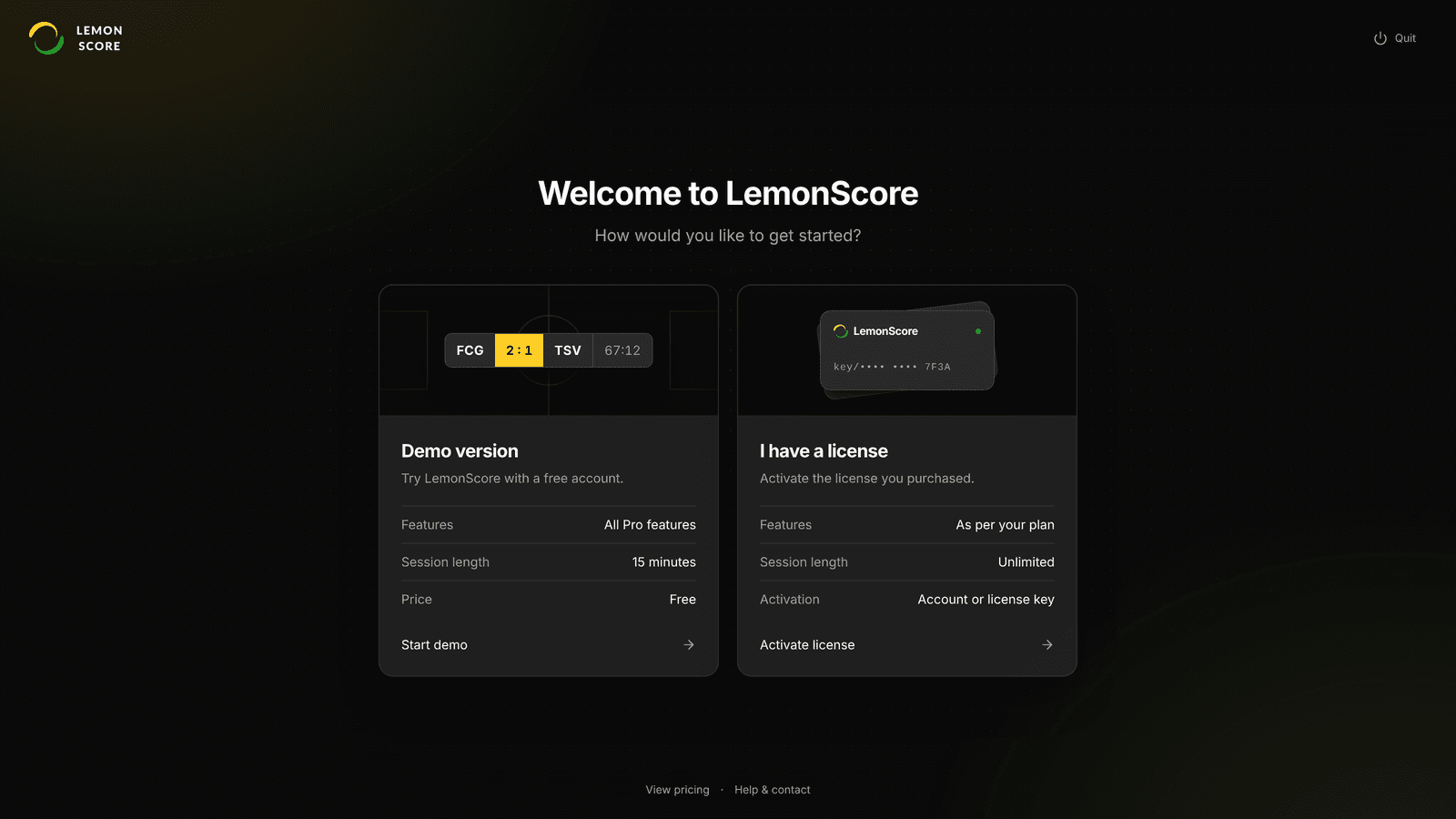
As long as a computer has no valid licence, LemonScore fills the screen with Welcome to LemonScore and asks How would you like to get started?. Two cards sit side by side and show the differences at a glance:
| Demo version | I have a license | |
|---|---|---|
| Features | All Pro features | As per your plan |
| Session length | 15 minutes | Unlimited |
| Activation | Account with an email code | Account or license key |
Quit in the top right closes the program. At the bottom, View pricing and Help & contact open the website. The Escape key always takes you one step back.
Activation needs an internet connection. Once activated, a purchased licence keeps working offline, which matters at grounds where the Wi-Fi struggles on match day (see our post on Wi-Fi at the sports ground). The documentation on licensing has every step in detail.
The LemonScore demo with an email code
Up to version 1.5.2, the demo started from a small window that asked for a name, an email address and a phone number. Now you create your own LemonScore account:
- On the Demo version card, click Start demo.
- In Create your free account, fill in Full Name, Club / Company, Email Address, Password and Confirm Password. The password needs at least 8 characters, an uppercase letter, a lowercase letter and a number. A meter shows the password strength.
- Click Create Account.
- Under Check your email, enter the 6-digit code from the email. LemonScore checks it as soon as the last digit is in.
- Under You're all set, click Continue.
- Read the Demo Mode notice and click OK.

No code yet? Check your spam folder. After 60 seconds you can ask for a new one with Resend code. If you already have an account, use Sign in next to Already have an account? below the form.
How a demo session with every Pro feature works
After OK, a countdown from 15:00 runs at the top of the window, with a link to the pricing page next to it. At 0:00, LemonScore shows Your demo time is up and closes. Start the program again and a fresh 15-minute session begins. You do not need to register again.

The demo includes everything in LemonScore Pro: playlists, advertising banners, shortcuts, the Stream Deck, the broadcast overlay for your livestream and the COEX controller connection. The API is not included, as it comes with Enterprise only.
A practical tip: give each session one topic. Fifteen minutes is enough to add a team with its logo, start the match clock and play through a goal with its animation. In the next session you can try the lineup on the scoreboard or control from a phone.
Activating a purchased licence by account, key or file
If your club has bought a licence, click Activate license on the I have a license card. There are two tabs:
- Account: sign in with your email address and password. LemonScore activates the best licence on your account automatically. If the account has no purchased licence, the demo version starts.
- License Key: paste the key into the field or click Choose license file (files ending in .lic, .key or .txt). Then click Activate license.
Finally, Continue takes you into the app. If you have forgotten your password, Forgot password? opens the website, where you can set a new one. Without a licence, Try the demo for free next to No license yet? at the bottom takes you to the demo form.

If LemonScore is already running as a demo, you switch to your licence without the welcome screen: under Settings › General, paste the key into the License Key field or upload a licence file with the upload icon, then click Activate. Current License then shows your plan with the status Active.
Moving your licence to another computer
The old club laptop is being replaced, or the club is switching to the LemonScore Controller. In that case, release the old computer from your licence first:
- On the old computer, open Settings › General.
- Click Remove license, then Confirm. LemonScore releases the computer and shows the welcome screen again.
- Activate the licence on the new computer.
Remove license is only available with a purchased licence, and releasing the computer needs an internet connection. If it fails, the Computer not released dialog appears. If you confirm it, LemonScore removes the licence from this computer only, but the activation stays in use. To free it later, activate the licence on this computer again and remove it while online.
Remove the licence before the old laptop is wiped or handed on. Once it is gone, the computer can no longer release its activation.
Which route suits your club
The demo is for anyone who wants to check LemonScore with their own equipment: the clubhouse TV, the projector for the indoor tournament or the LED controller of the scoreboard. It also makes a good basis for convincing the club meeting, because you can show your own teams and logos rather than sample images. For an overview of every feature before you test, see scoreboard software for clubs.
For match days you choose a plan. Basic covers the scoreboard, match clock, teams, lineup, remote control, animations and layouts. Pro adds playlists, advertising banners, shortcuts, Stream Deck, the broadcast overlay and COEX. Enterprise also includes the API. All plans are listed on the pricing page. Everything else that is new in version 1.6 is collected in LemonScore 1.6: what's new.